¶ Sharing files in WebDisk Files
You can share a file or a whole folder in two ways: with a link (for anyone — the recipient does not need an account) or by sharing to a user (one specific person in your organisation).
⚠️ Both ways work on the primary magazyn (storage space). When you switch to the tab of an additional magazyn, the "Share" and "Share to user" buttons do not appear at all.
¶ Sharing with a link (for anyone)
- Find the file or folder and click "Share" next to it. The "Share file" window opens (for a folder — "Share folder").
- Set the protections — all of them are optional:
- "Expires after (hours, optional)" — the number of hours after which the link stops working. An empty field means the link never expires.
- "Password (optional)" — the recipient enters it before downloading.
- "Max downloads (optional)" — for example 5 downloads and no more.
- Click "Create share link" — only now does the finished address appear for you to copy.
- Copy the address and send it through any channel you like, or use the "Email the link to" field that appears in the same window below the address — we will send the message on your behalf.
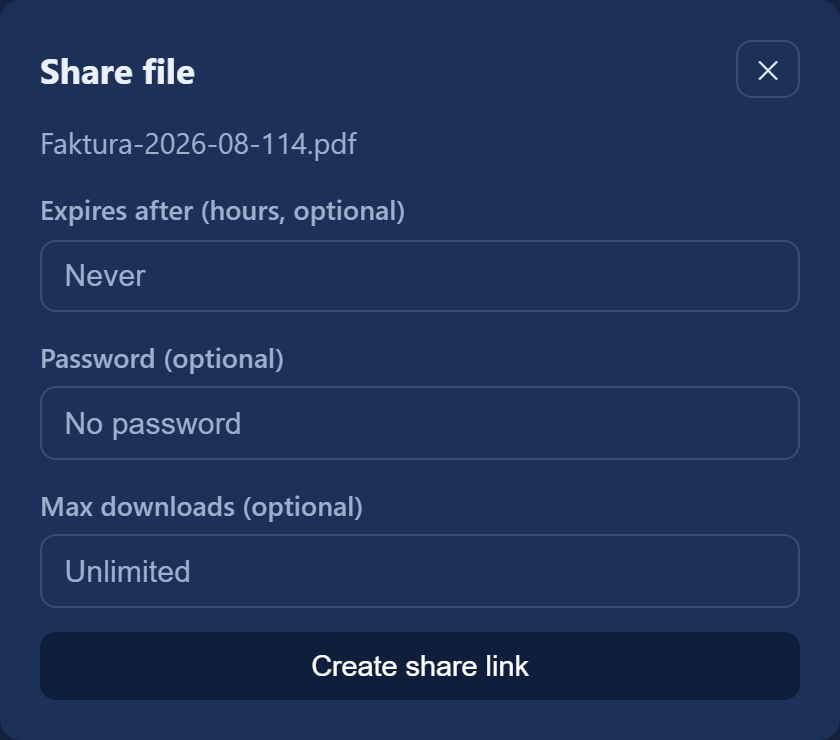
💡 Do not look for a calendar — you do not pick an expiry date, you enter a number of hours from when the link was created.
¶ What the recipient sees
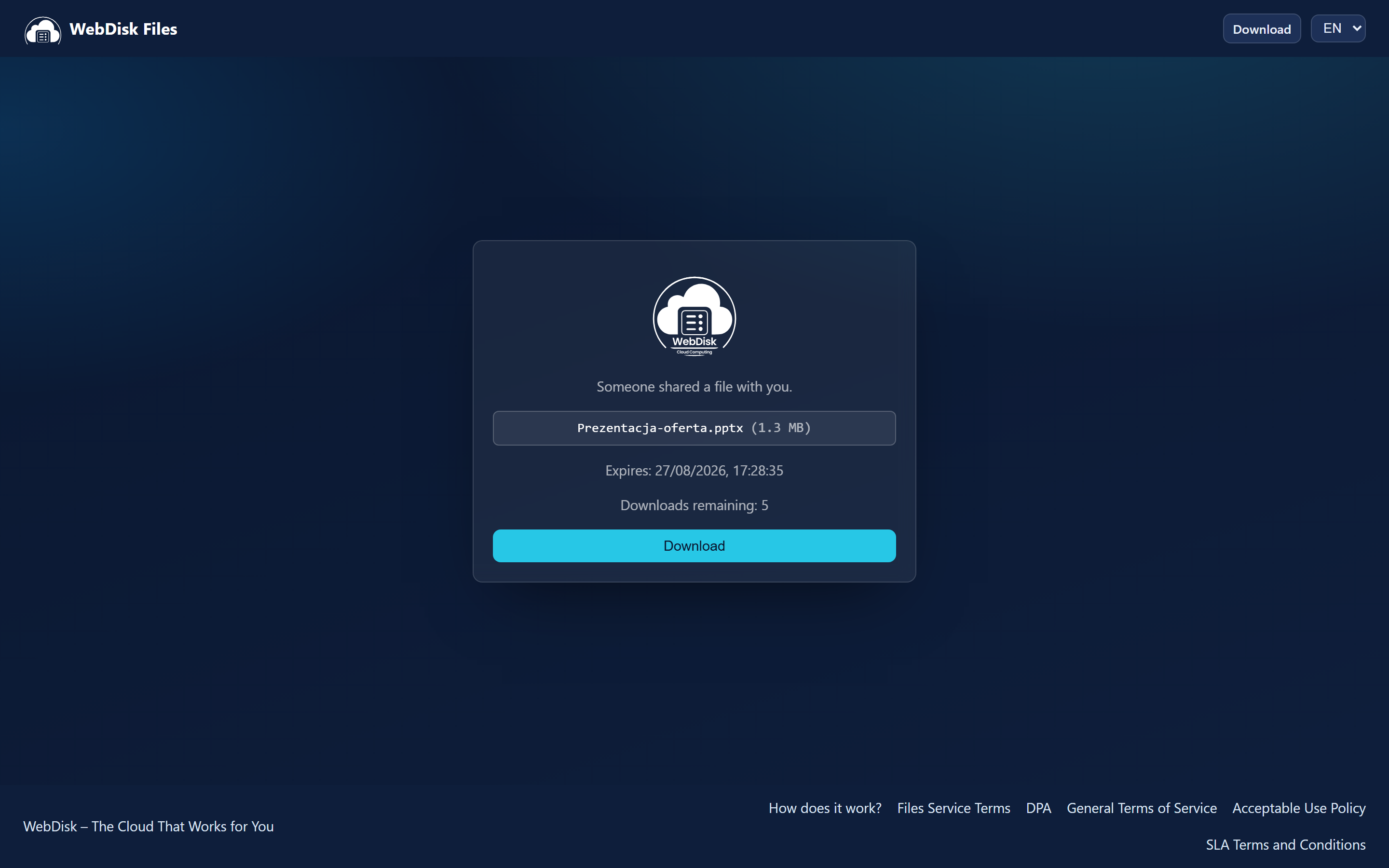
The recipient opens the link in a browser, enters the password (if you set one) and downloads the file. They do not need a WebDisk account.
¶ Stopping a link
Opening the "Share" window again does not switch off the existing link — it creates another one. To invalidate a link:
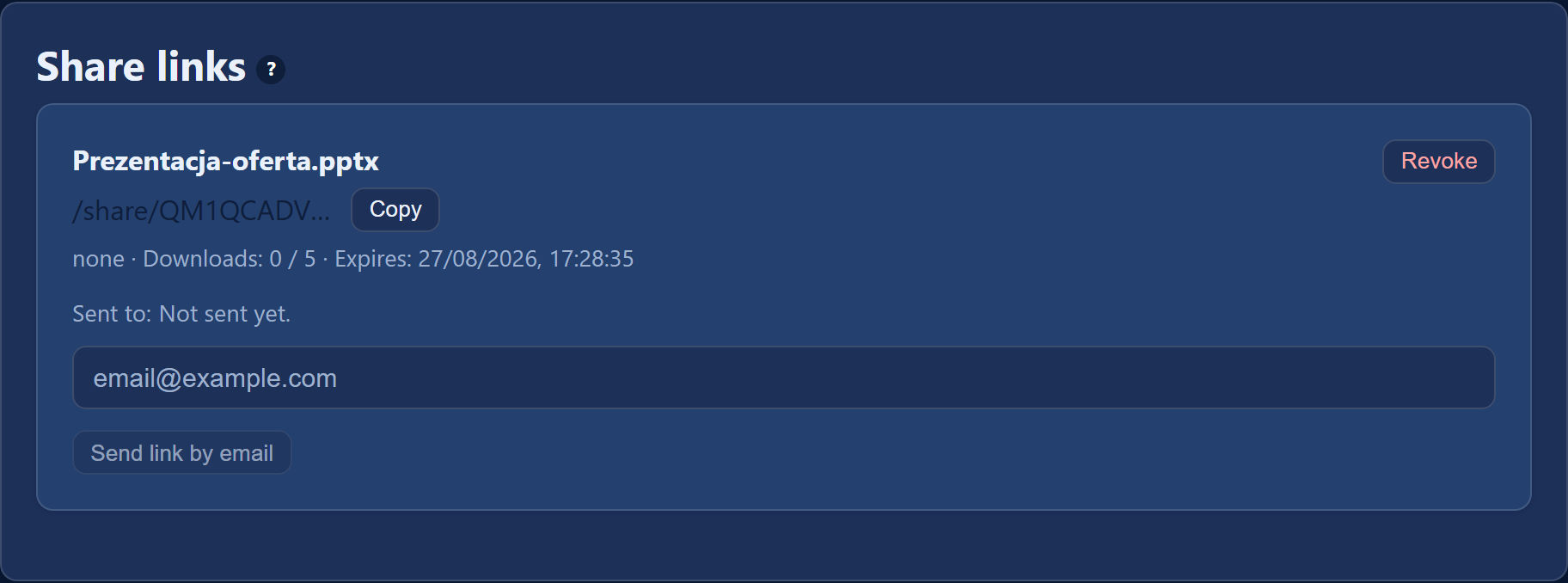
- Scroll to the bottom of the panel, to the "Share links" card.
- Find your link in the list — next to it you will see its protection, the download counter and the expiry date, among other things.
- Click "Revoke" and confirm. From that moment the old address stops working.
¶ Sharing inside the company (to a person in your organisation)
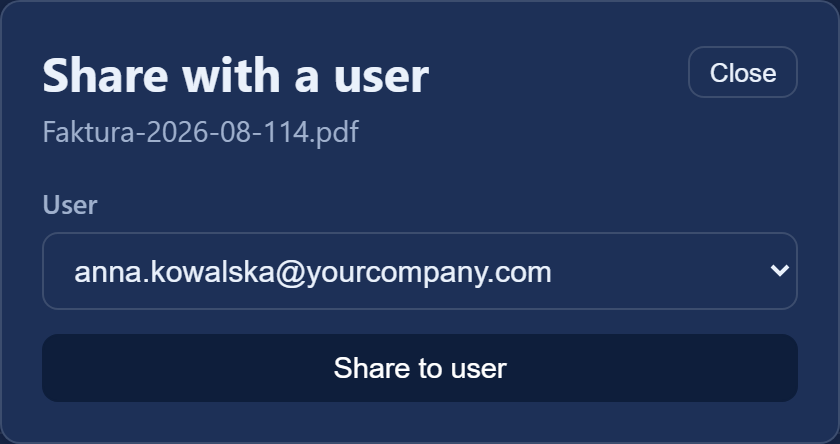
- Click the "Share to user" button next to the file or folder.
- In the "Share with a user" window pick somebody from your organisation and confirm.
The recipient will see the entry on their side in the "Shared with me" card, labelled "Shared by …":
- a shared file — with the "Download" and "Remove" buttons next to it,
- a shared folder — the "Open" button launches a small file manager in which the recipient browses the contents, downloads files, uploads their own with the "Upload here" button and deletes files from your folder.
⚠️ There are no permission levels — you cannot share something "read-only". By sharing a folder you give the recipient the right to delete your files from it and to upload new ones. With a single file the recipient can only download it; the "Remove" button then takes the entry off their list rather than deleting your file. So share deliberately, and be especially careful with folders.
¶ Ending a share
⚠️ This is the one place in Files where you cannot cut access off yourself. The panel only shows what has been shared with you — there is no list of what you have shared with others, so there is nothing to click "Remove" on.
You have two routes:
- ask the recipient to remove the entry from their "Shared with me" card with the "Remove" button (only their access disappears — the file itself stays with you),
- or delete the file on your side; the share then has nothing left to point at. Just remember that deleting a file in Files is immediate and irreversible — and moving the file somewhere else is not possible.
If you need to cut access off and the recipient is not responding, write to us through "Report a problem".
¶ Common questions
- Does the recipient of a link need an account? No — the link works for anyone.
- Can I share a whole folder? Yes, in exactly the same way as a single file.
- Can I see how many times a file has been downloaded? Yes — the download counter sits next to the link in the "Share links" card. That applies to public links; sharing inside the company has no counter.
- Where can I see who I am sharing what with? Nowhere — the panel has no such list. It is worth keeping one on the side before you start sharing folders.
- I shared a folder and a file is missing from it? Check with the person you shared it with — the recipient of a shared folder can delete the files inside it.
💡 Cannot see the "Share" button? Check whether you are standing on the tab of an additional magazyn — go back to the primary one. More about magazyny in Getting started.