¶ Using Nextcloud
Once your server is running, you work in two places: the WebDisk portal (next.webdisk.io) is where you manage the service, and Nextcloud itself (yourcompany.next.webdisk.io) is where you work with files and people.
💡 Remember the split: WebDisk portal = domain, backups, plan, invoices, subscription. Nextcloud = files, sharing, users, apps.
¶ The WebDisk portal — where to find what
After signing in to the portal you land on the "Your NextCloud" page with the "Your servers" list. Each server card shows the address, the plan, "NextCloud version", "Planned maintenance" and a status badge (for example "Running"), along with an "Open NextCloud" button.
The "Subscription" section is visible straight away. The remaining details are tucked into sections you open with the "+" button (and close with "−"): "Expand subscription", "NextCloud domain configuration", "Load" and "Snapshots". Below the list of servers there are also the "Report a problem" and "Invoices" cards, and in the portal header — a language switcher, a theme switcher and the "Profile" and "Sign out" buttons.
¶ Custom domain
Instead of the yourcompany.next.webdisk.io address you can use your own domain (for example cloud.yourcompany.com). You set this up yourself, in the portal.
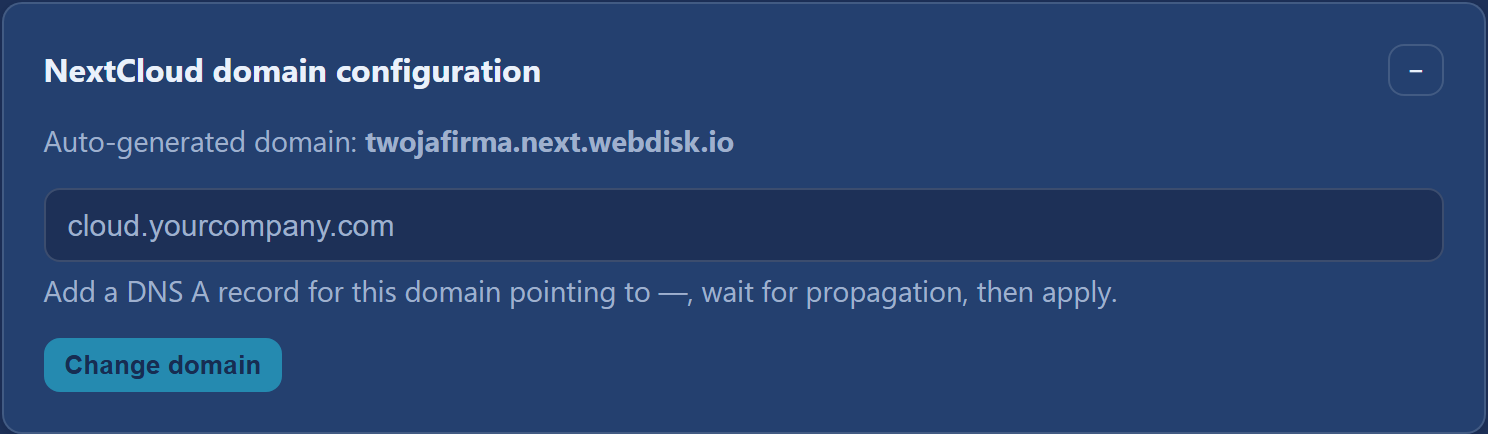
- In the portal, open the "NextCloud domain configuration" section on the server card.
- Read the IP address from the hint below the field ("Add a DNS A record for this domain pointing to…").
- At the provider where your domain is registered, add a DNS A record for the name you have chosen (for example
cloud.yourcompany.com) pointing to that IP address. - Wait for the change to propagate (usually from a few minutes to a few hours).
- Return to the portal, type your domain into the field and click "Change domain".
The server status will change to "Changing domain", and once the new HTTPS certificate is ready you will receive the "Your custom domain is active" email.
💡 Want to go back to the
*.next.webdisk.ioaddress? Click "Use auto domain" in the same section.
⚠️ You can only change the domain while the server has the "Running" status. If something fails after DNS propagation (the certificate not being issued, for instance), write to us via "Report a problem".
¶ Backups and restoring
Once a day, at night, we automatically take a snapshot of the whole server. By default we keep the 7 most recent — older ones are rotated out.

- Open the "Snapshots" section on the server card.
- Find a snapshot with the right date and the READY status on the list (only those get a restore button).
- Click "Restore" next to your chosen entry.
- Confirm the message "Restore the server from this snapshot? Current state will be overwritten."
When the restore finishes, you will receive the "Your NextCloud has been restored" email.
⚠️ Restoring overwrites the current state and covers all of the server's disks — including files added after the date of the snapshot you chose. The button only works while the server has the "Running" status; with any other status, write to us via "Report a problem".
💡 You cannot trigger an on-demand backup from the portal. If you want a fresh snapshot before a risky operation, ask us for one via "Report a problem" in advance.
¶ Changing the plan and expanding storage
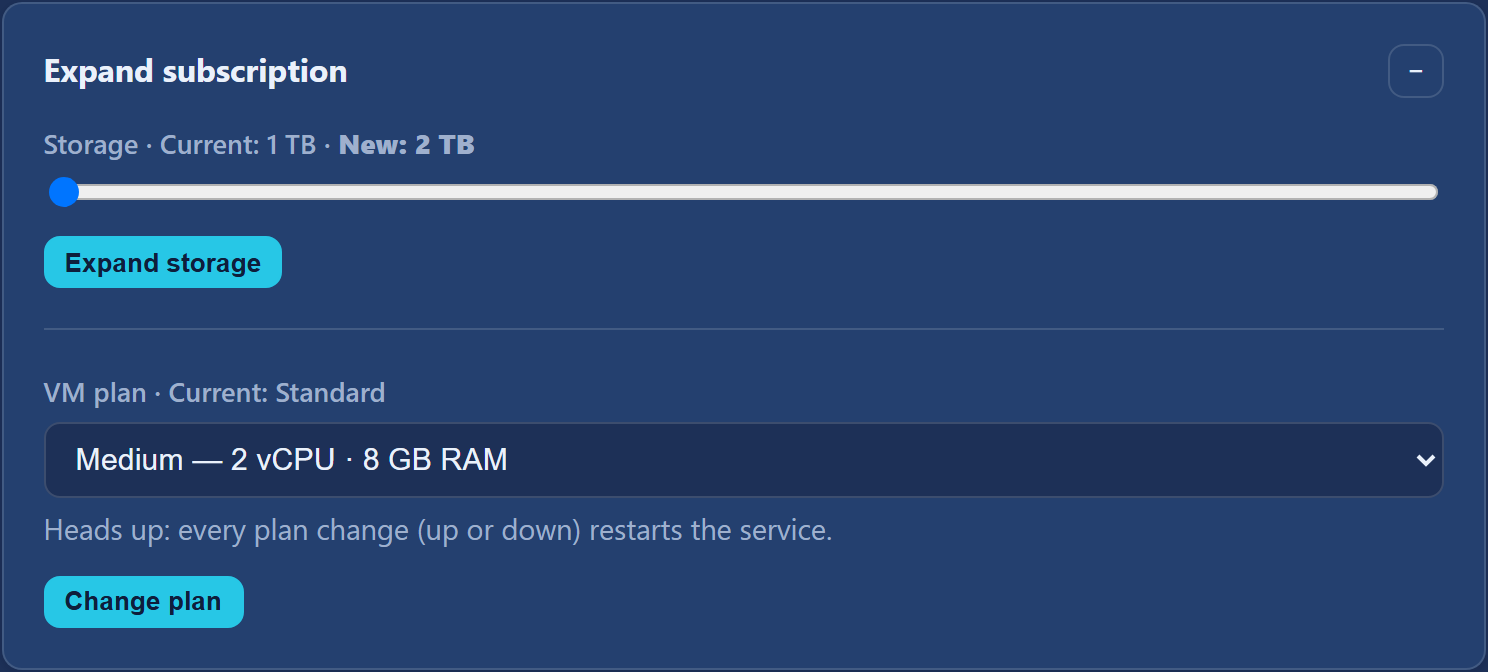
You do both in the "Expand subscription" section:
- Storage — set the new size with the slider and click "Expand storage". Expansion happens with no interruption to the service. Storage can only be increased (the slider starts at your current size plus 1 TB), up to 100 TB.
- VM plan — pick a different plan and click "Change plan". You can move up or down, but every plan change restarts the server — the machine is stopped and started again, so Nextcloud will be unavailable for a few minutes. The portal will ask you to confirm.
We email you when each of these operations finishes. Both require the "Running" status.
¶ Server load

The "Load" section shows you in real time how your machine is doing: CPU, RAM, Disk I/O and Network. The readings refresh every 15 seconds. On a freshly launched server you may still see the message "Metrics not available yet."
💡 Consistently high CPU or RAM is a sign that a larger plan is worth considering — see the "Expand subscription" section above.
¶ Subscription: what we charge and how to cancel
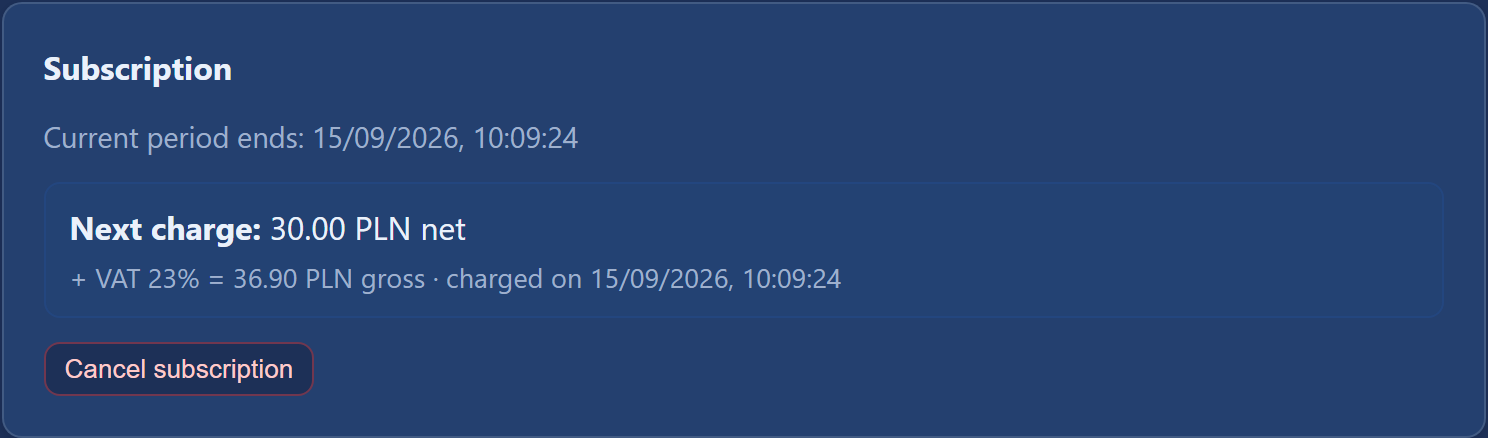
The "Subscription" section shows:
- "Current period ends" — the date the paid period runs out,
- "Next charge" — the net amount with 23% VAT added (the gross amount) and the charge date,
- the "Cancel subscription" button, and after cancelling — "Resume subscription" together with a "Cancels on …" note.
After clicking "Cancel subscription" you confirm the message "Cancel the subscription at the end of the current period?". The server keeps running normally until the end of the paid period, and you receive a confirmation by email.
⚠️ At the end of the paid period the server and all the data on it are deleted. If you change your mind, click "Resume subscription" before that date. Download your files from Nextcloud before you cancel.
💡 You cannot change your payment card from the portal — if it needs replacing, write to us via "Report a problem".
¶ Invoices

The "Invoices" card below the list of servers holds the VAT invoices issued for your subscription: Number, Issued, Amount (gross), Status and a "Download PDF" button. The file you download is the original document from our invoicing system. A freshly issued invoice may briefly show the "In preparation" status; invoices filed with KSeF also show a KSeF number.
💡 Invoices appear here after a paid period, and only if your profile has a VAT / NIP number and "I'd like an invoice (VAT)" is ticked — see the section below.
¶ Profile, billing details and account security
Click "Profile" in the portal header to open the "My profile" dialog. It contains:
- your account email address, together with a reminder that the password is shared across WebDisk services and is changed through the password-reset flow,
- the "Billing profile" section: Company / name, Name, Street, Postal code, City, VAT / NIP, Country and the "I'd like an invoice (VAT)" checkbox (save your changes with the "Save" button),
- "Two-factor authentication" — extra protection for signing in to the portal,
- "Download your data" — an export of your data to a JSON file,
- "Close my account" — permanent deletion of your account and all your servers.
The last three are described in the FAQ.
💡 There is no change-password field in this dialog. The password is shared across all WebDisk services and you change it via "Forgot password?" on the sign-in screen.
¶ Reporting a problem
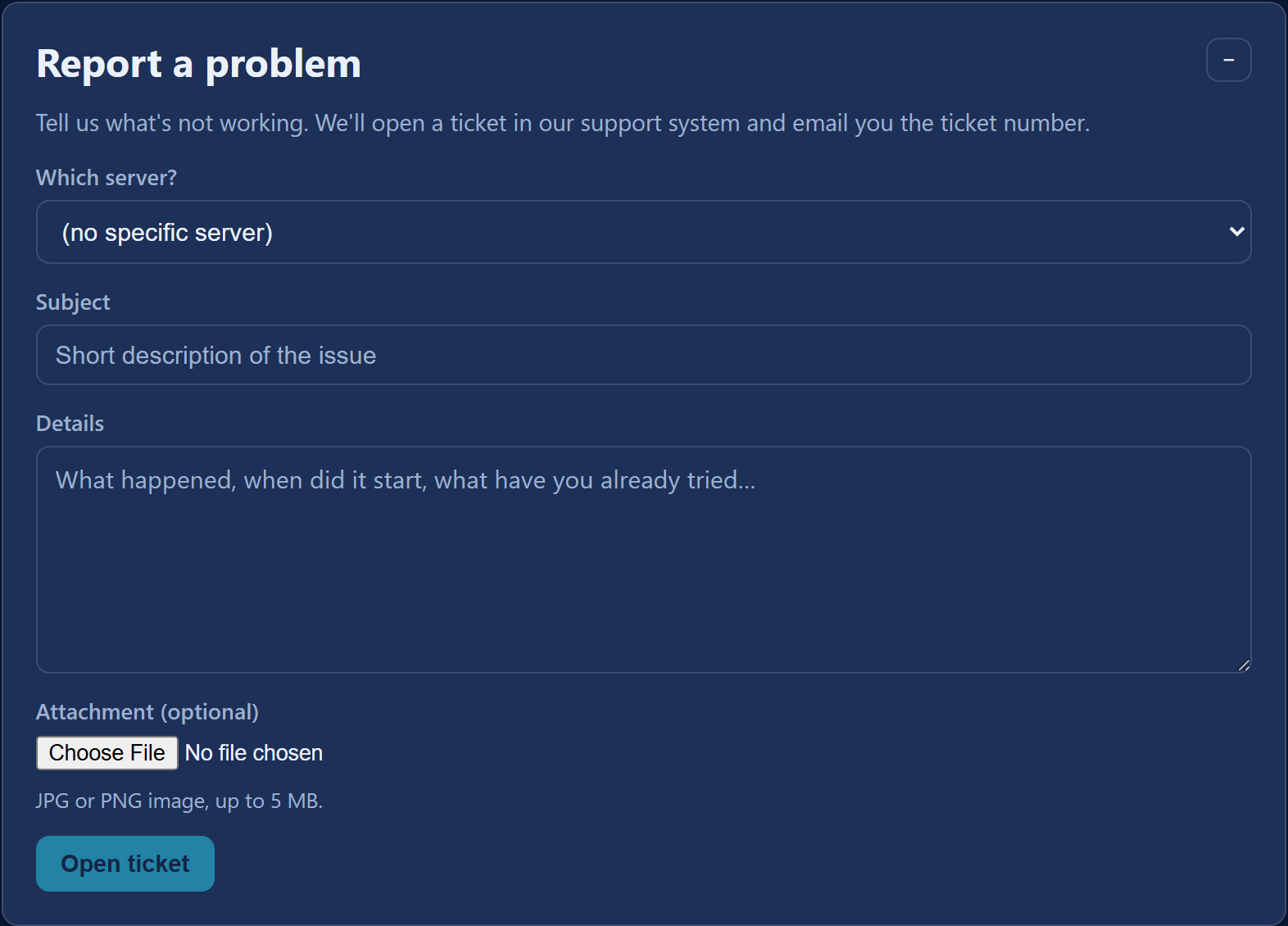
In the "Report a problem" section of the portal you fill in: "Which server?" (you can pick "(no specific server)"), "Subject", "Details" and "Attachment (optional)" — a JPG or PNG image, up to 5 MB. After clicking "Open ticket" you will normally see your ticket number straight away, and we will reply by email.
¶ Everyday work in Nextcloud itself
At yourcompany.next.webdisk.io you have a full, standard Nextcloud, not a cut-down version. Signed in as the administrator, you can:
- upload files and organise them into folders,
- share files and folders with other people in your Nextcloud or via an external link (you can protect a link with a password and an expiry date),
- create further users and grant them permissions,
- install extra apps from the Nextcloud app store — calendar, contacts, notes, tasks, Talk chat and more. Some apps (e.g. online editing of office documents) need a separate server that the service does not include — see the FAQ for details.
The layout of the screens and the names of the buttons come from Nextcloud itself and change with its versions, so you will find detailed instructions in the official documentation: https://docs.nextcloud.com/
¶ Desktop and mobile apps
This is a full Nextcloud, so the official Nextcloud apps work with it:
| Device | App | What it does |
|---|---|---|
| Windows / macOS / Linux | Nextcloud Desktop | Synchronises a chosen folder on your computer with the cloud. |
| Android / iPhone | Nextcloud (Google Play / App Store) | Access to your files and automatic photo upload from your phone. |
Setup is simple: in the app you enter your server's address (yourcompany.next.webdisk.io or your own custom domain) plus the username and password of your Nextcloud user. Installation instructions are at https://docs.nextcloud.com/
¶ What next?
- Questions about payments, suspension, cancellation or security? → FAQ
- Just getting started? → Order and sign in