¶ Order and sign in to WebDisk Nextcloud
This guide takes you from ordering your own Nextcloud to your first sign-in. Your part takes a few minutes — the rest is automatic.
¶ 1. Choose your address, plan and storage
Go to the order page at next.webdisk.io and set three things:
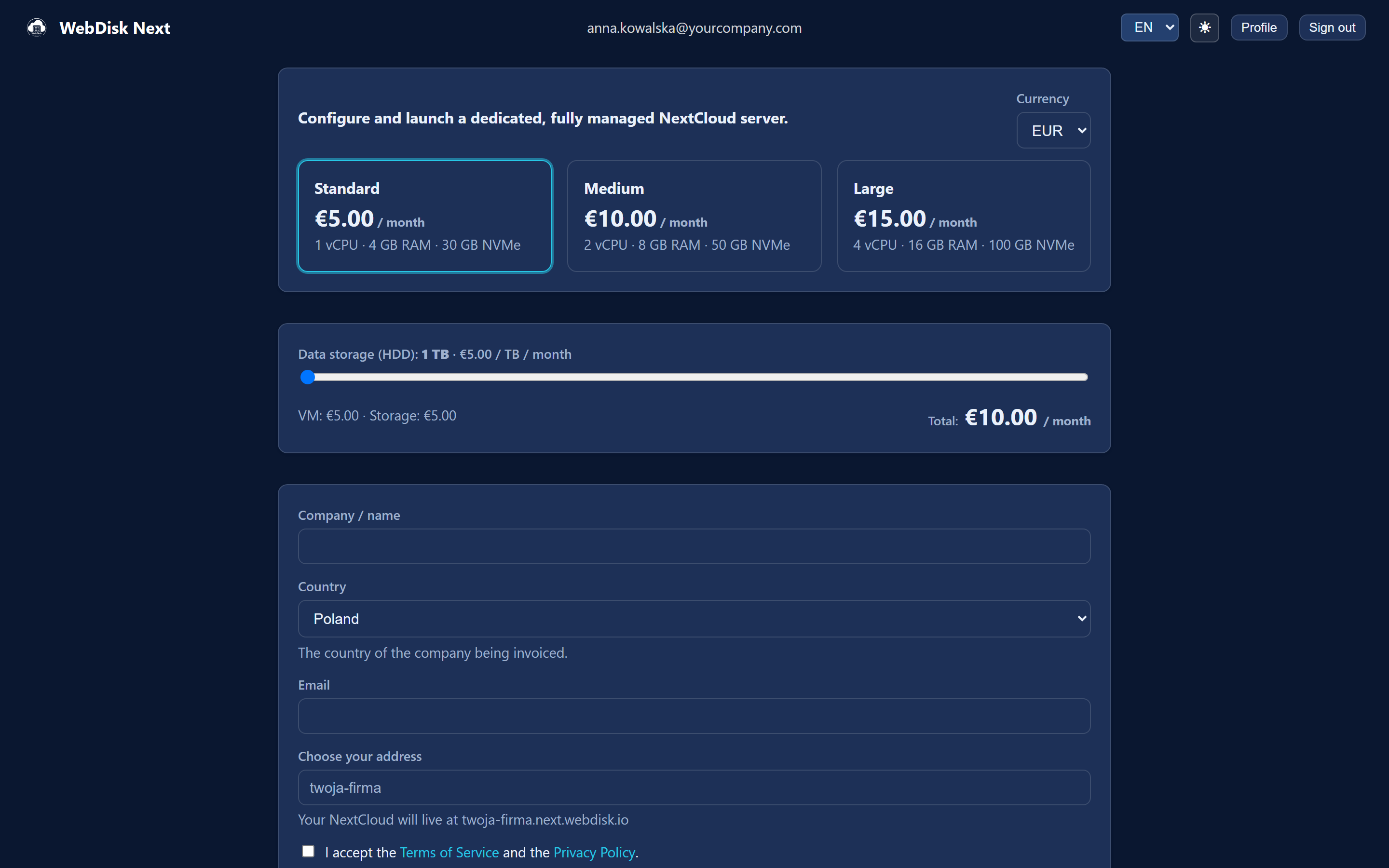
- Address (subdomain) — the "Choose your address" field. Enter a name, for example
yourcompany; your Nextcloud will be available atyourcompany.next.webdisk.io. We check availability as you type — if the address is taken, you will see "This address is already taken — pick another one." - Plan — the power of the machine (processor, memory, fast disk). You can change the plan up or down later.
- Data storage (HDD) — how much space (in TB) you need. Later you can only increase it, up to 100 TB.
💡 The price has two parts: the plan (power) plus storage (TB). A live summary with "VM", "Storage" and "Total" lines sits next to the form.
¶ 2. Enter your details, pick a currency and accept the documents
The lower part of the form covers the rest:
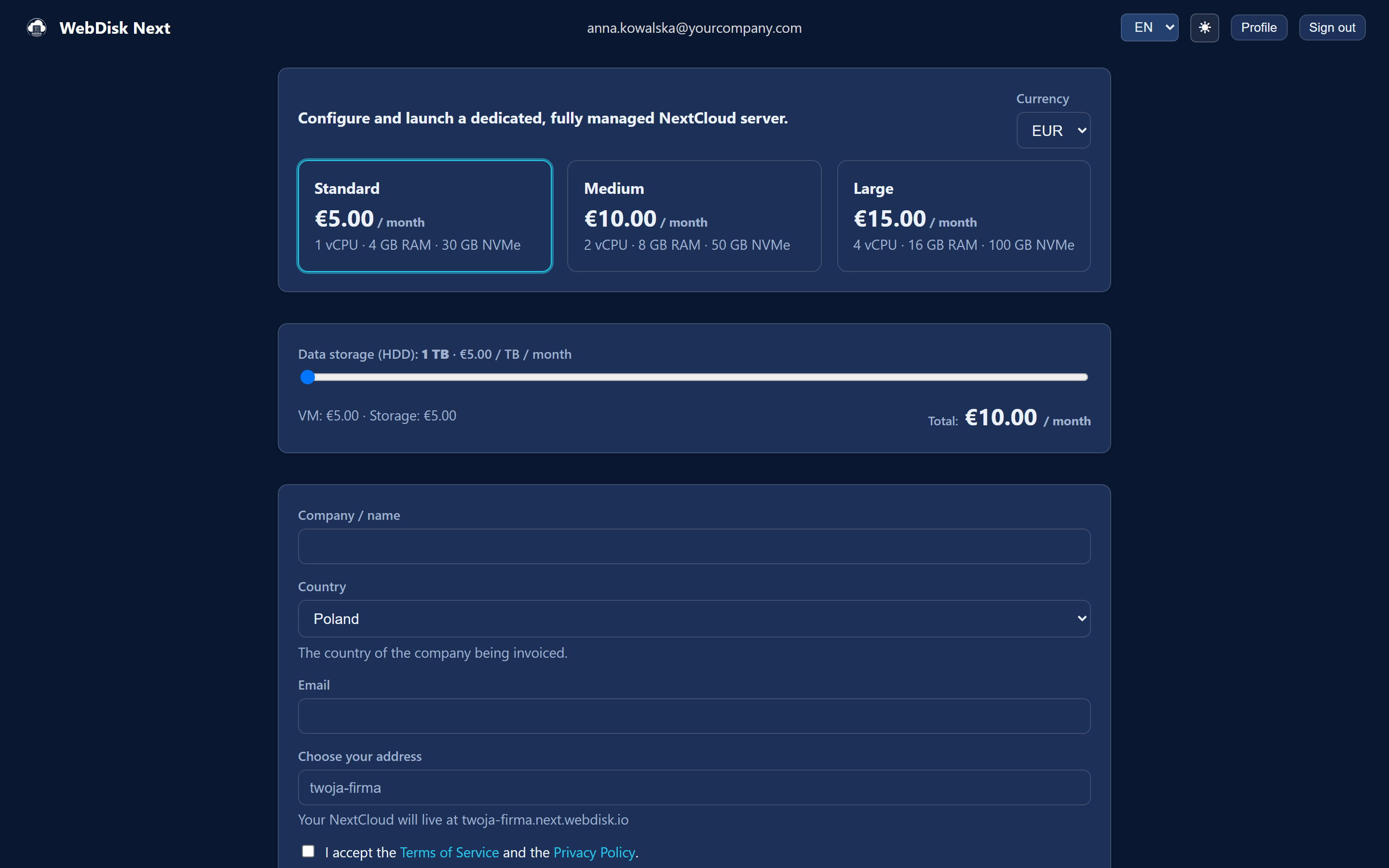
- Currency — PLN, EUR or USD (we suggest a default based on the language of the site).
- Email — we will send every message about the service to this address.
- Company / name and Country — the details of the company we will invoice.
- Accepting the Terms of Service and the Privacy Policy — ticking the box is required; both documents open straight from the form.
💡 The prices shown are net. 23% VAT is added at payment, so the payment screen will show a higher amount than the order summary.
💡 If the email address you enter already has a WebDisk account (from WebDisk Files, for example), the order will be linked to it and you will sign in to the portal with your existing WebDisk password.
¶ 3. Pay
Click "Continue to payment". Payments are handled by Stripe (secure card payment) on its own protected screen.
One order = one server = one subscription. The subscription renews automatically.
¶ 4. Set your portal password and confirm your email address
Right after ordering you receive two messages: "Order received — your NextCloud is being created" (the confirmation) and "Activate your WebDisk NextCloud account" with a "Set password" button. That password is for the WebDisk portal, not for Nextcloud itself.
Clicking the activation link also confirms your email address.
⚠️ Confirm your email address within 7 days. Without confirmation the service is suspended and the server stopped — until you click the activation link. The portal will then show a warning at the top of the page. Your data stays untouched, and the server starts again as soon as you confirm.
💡 The password link itself is valid for 48 hours. If it expires, request a new one via "Forgot password?" on the sign-in screen — that link works the same way and also confirms your email address.
💡 Already have a WebDisk account? Then you do not set a new password — you sign in with the one you use for your other WebDisk services.
¶ 5. Wait for provisioning
Once the payment clears, the server is built automatically. This usually takes a few to a dozen or so minutes. During that time your machine is created, Nextcloud is installed, the yourcompany.next.webdisk.io address is configured and an HTTPS certificate is issued.
You can follow progress via the status on the server card in the portal. The stages are:
Awaiting payment → Queued → Provisioning → Installing → Running
The "Running" status means you can sign in. There is nothing for you to do — just wait.
¶ 6. Sign in to the WebDisk portal
The portal is where you manage the service (not your files).
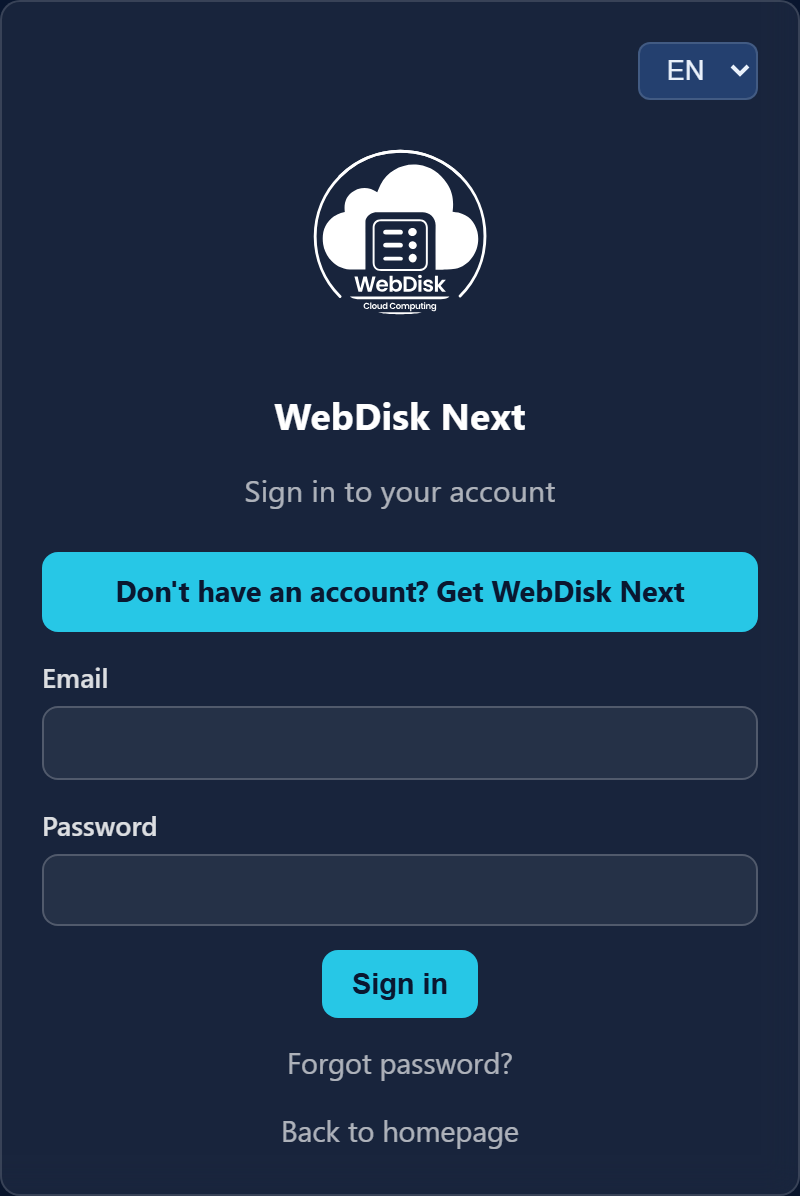
- Go to
https://next.webdisk.io. - Enter the email and password you set in step 4 and click "Sign in".
- If you have two-factor authentication enabled, add the 6-digit code from your authenticator app.
💡 The portal password is shared across all WebDisk services. There is no "change password" field in the portal — you set a new one via "Forgot password?" on the sign-in screen, and the change then applies to every WebDisk service.
¶ 7. Sign in to your Nextcloud
- Go to your server's address:
https://yourcompany.next.webdisk.io(or click "Open NextCloud" on the server card in the portal). - Enter the admin username and password from the "Your NextCloud is ready" email — the message contains "Address", "Admin user" and "Admin password" rows.
- You are in — this is your full Nextcloud.
⚠️ You receive the Nextcloud admin credentials only in that email. The WebDisk portal does not show them. Keep the message, or change the admin password to one of your own straight away. If the email has gone missing and you do not know the password, write to us via "Report a problem" in the portal — we will set a temporary password (details in the FAQ).
💡 The "Forgot password?" link in Nextcloud only works once you have added your account's email address (Personal settings → Personal info) and configured an outgoing mail server (Administration settings → Basic settings → Email server). A new server has neither — do it right after your first sign-in.
💡 This account is the administrator of your Nextcloud — you are the one who creates further users, grants permissions and installs apps.
¶ What next?
- Want to get to know the portal and connect a custom domain? → Using Nextcloud
- Have a question about backups, invoices, suspension or cancellation? → FAQ