¶ Access and management
This page covers two things: how to connect to your server (over SSH or the browser console) and what you can do in the panel — all of it by clicking, with no cloud expertise needed.
¶ What sits where in the panel
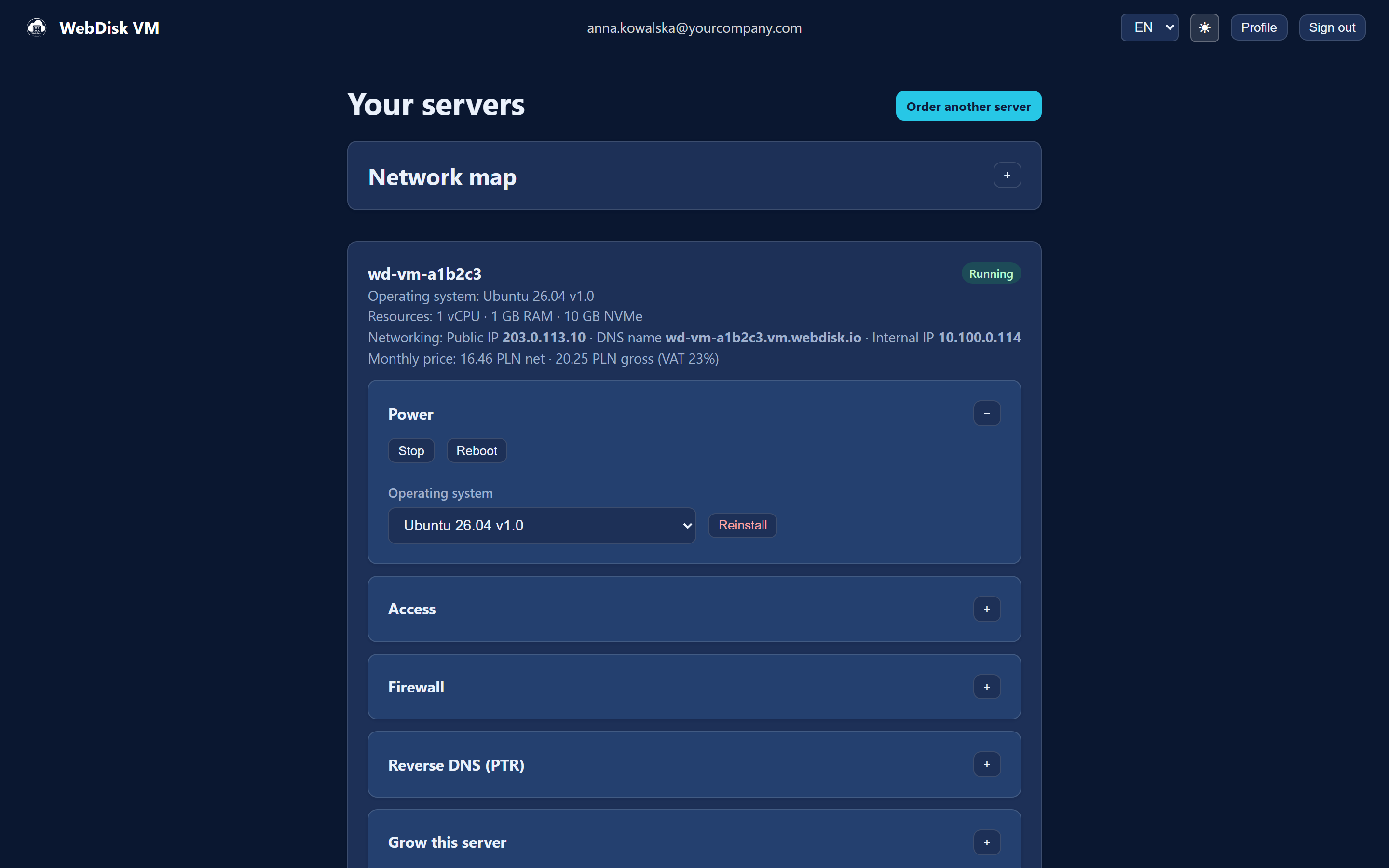
The "Your servers" page is laid out like this:
- the "Order another server" button at the top,
- the "Network map" below it — shared by the whole account,
- then a card for each server, with collapsible sections: "Power", "Access", "Reverse DNS (PTR)", "Grow this server", "Snapshots", "Firewall", "Subscription",
- at the foot of the page: "Invoices", "Report a problem" and "SSH key",
- in the top bar, the "Profile" window — password, billing details, two-factor sign-in, data export and closing your account.
¶ The SSH key — one for the whole account
The "SSH key" section sits below the list of servers, not on any individual machine's card. The same key is injected into every server you create — it is the default way to sign in.
- "Download private key" — if we generated the key for you. Save the file somewhere safe and never share it.
- "Replace with your own public key" — paste your own public key and click "Save key".
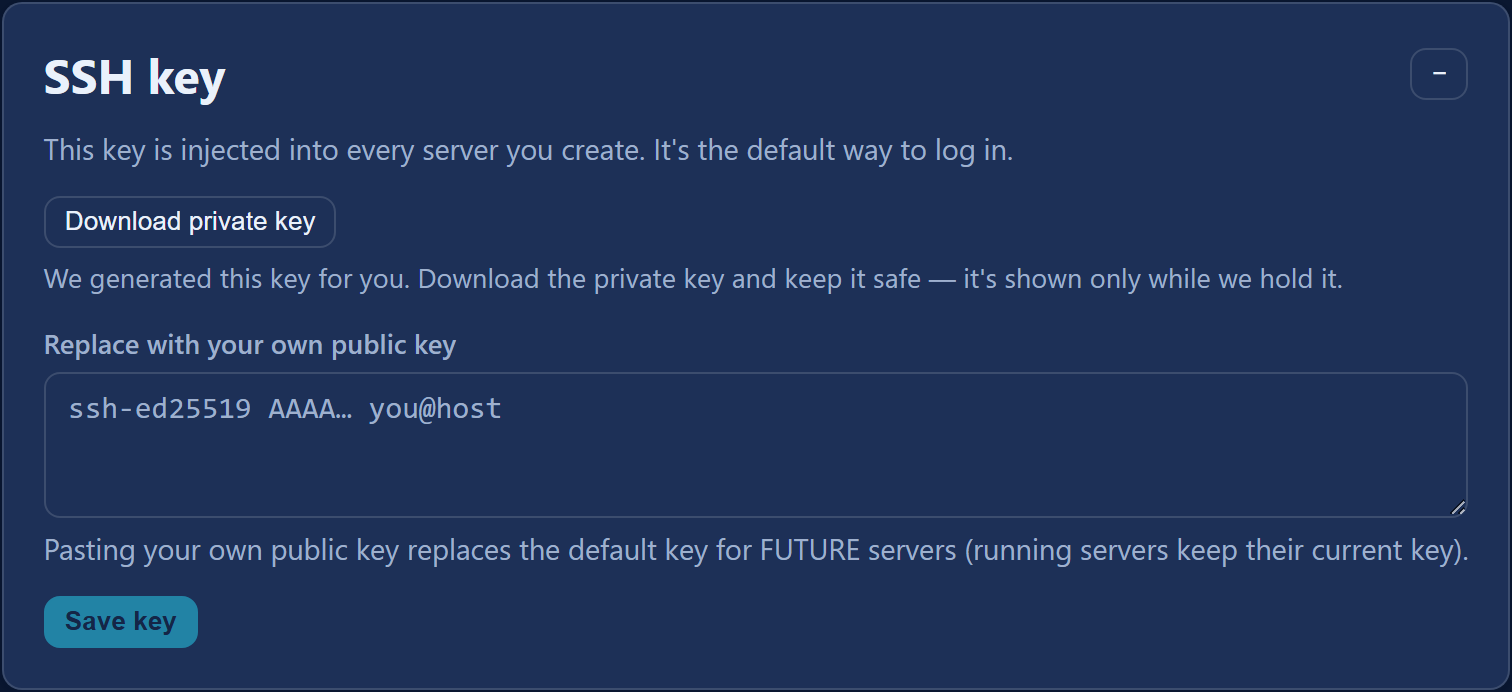
⚠️ Replacing the key only affects future servers — machines that are already running keep their current key. We show the private key for as long as we hold it: download it and keep it safe.
¶ Connecting over SSH (recommended)
SSH is a secure way to control your server remotely — you type commands in a text window (a terminal) on your own computer and they run on the server in the cloud.
You need three things: the address (the "Public IP" or "DNS name" field on the server card), the user (from the "Access" section) and the private key (from the "SSH key" section).
On Mac/Linux open Terminal, on Windows PowerShell, and type:
ssh user@ADDRESS
For example, if the user is ubuntu and the IP address is 203.0.113.10:
ssh ubuntu@203.0.113.10
💡 Instead of the IP address you can use the server's DNS name — it is on its card. If you are using the private key you downloaded from us, point at the file in the command:
ssh -i path/to/key user@ADDRESS.
¶ The browser console, login details and password reset
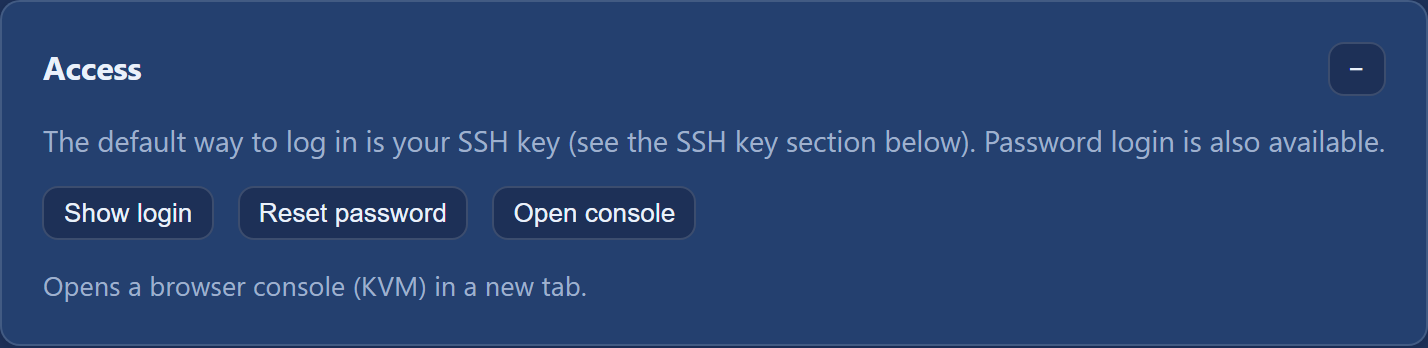
All three live in the "Access" section of the server card:
- "Show login" — shows the user and password (handy when the key is not to hand).
- "Open console" — opens the server's screen straight in your browser, in a new tab, as though you were sitting at an attached monitor. Nothing to install.
- "Reset password" — the panel stops the server, sets a new password and starts it again. You confirm once; the interruption is brief.
¶ Power: starting, rebooting, reinstalling
The "Power" section of the server card gives you:
| Button | What it does |
|---|---|
| "Start" | Turns a stopped server on. |
| "Stop" | Turns the server off. |
| "Reboot" | Turns it off and on again. |
| "Reinstall" | Builds the operating system from scratch — you pick it from the list next to the button. |

⚠️ A stopped server is still billed — the resources stay reserved for you. To stop paying, cancel the subscription (the "Subscription" section below).
⚠️ A reinstall wipes the system disk and rebuilds the server from the operating system you choose. Extra HDD disks are left untouched, but the operation cannot be undone — take a snapshot first.
¶ Firewall — opening ports
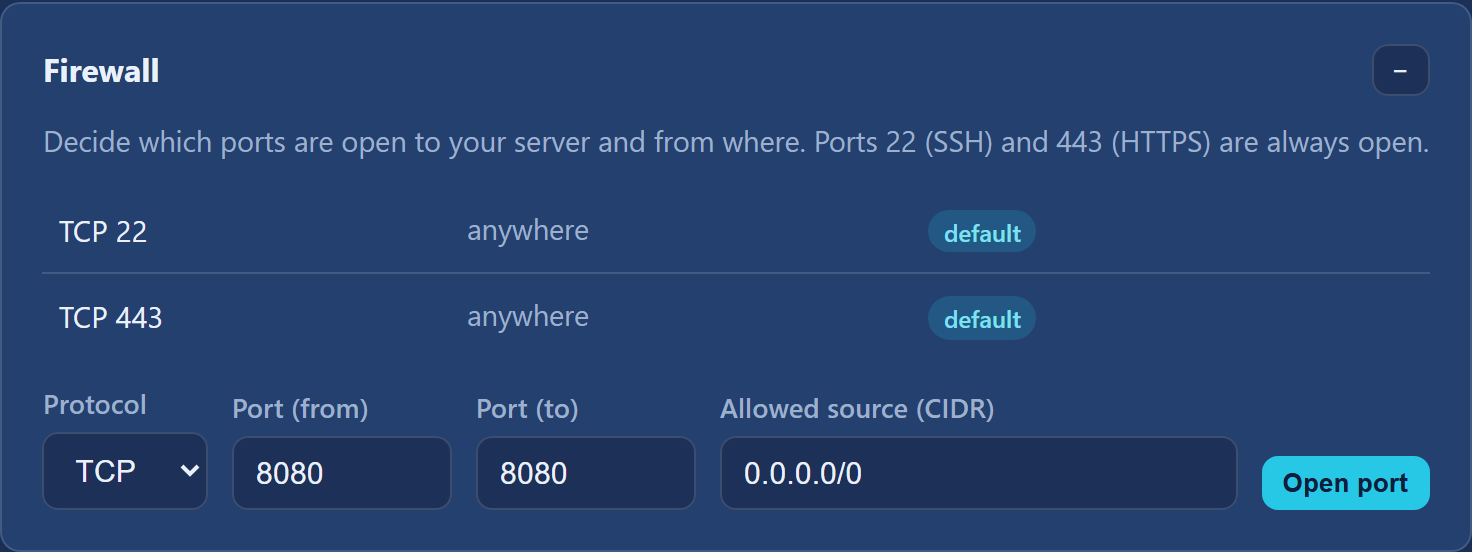
Ports 22 (SSH) and 443 (HTTPS) are always open — they appear in the rule list marked "default". Everything else you open yourself:
- On the server card, open the "Firewall" section.
- Pick the "Protocol" (usually TCP).
- For a single port, enter the same number in "Port (from)" and "Port (to)" —
80and80, say. For a range, give the start and the end. - Leave "Allowed source (CIDR)" empty if the port should be reachable from anywhere. If you want to let only yourself in, put your address or address range here.
- Click "Open port".
You remove one of your own rules with the "Remove" button next to it in the list. The default rules (22 and 443) cannot be removed.
¶ Grow this server: more power, disks, a public IP
The "Grow this server" section gathers everything that makes the server bigger.
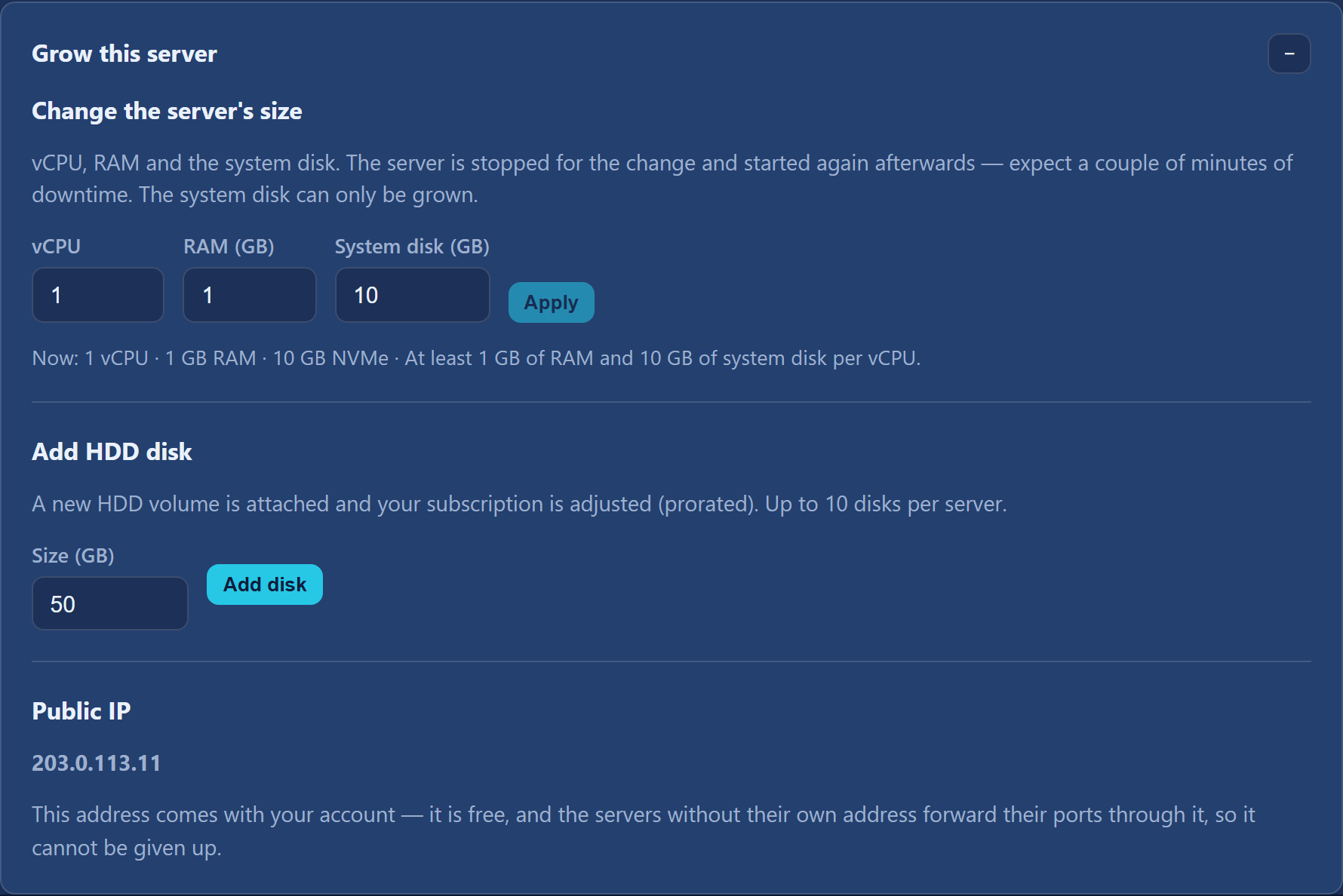
Resizing a running server. In "Change the server's size" you set "vCPU", "RAM (GB)" and "System disk (GB)", then click "Apply". The same rule applies as when ordering: at least 1 GB of RAM and 10 GB of system disk per vCPU. The panel shows the new monthly price straight away.
⚠️ The server is stopped and started again for the change — expect a couple of minutes of downtime. The system disk can only be grown, never shrunk. The subscription moves to the new size immediately, and you are charged the difference for the rest of the current month.
Adding an HDD disk. In "Add HDD disk" you give the "Size (GB)" and click "Add disk". The new volume is attached and your subscription adjusted pro rata. By default you can have up to 10 disks per server. You still have to partition and format the disk within your operating system; some systems only pick up new hardware after a restart — the panel will ask whether to reboot.
⚠️ You cannot remove a purchased disk yourself from the panel. If you want one taken off, write to us through "Report a problem".
Public IP address. This is also where you buy the server a dedicated address ("Buy public IP", a monthly fee charged pro rata) or give it up ("Give up the public IP" — the monthly charge disappears, the unused part of the current month is credited, and any PTR record you set is deleted). The address that comes included with your account cannot be released: it is the one through which servers without their own address forward their ports.
¶ Snapshots (backups) and restoring
A snapshot is a frozen copy of the whole server at a moment in time.
- Automatic copies are taken daily. By default we keep the last 5 — older ones roll off on their own. You do not delete these yourself.
- Manual copies you take with the "Take snapshot" button. By default you can hold 3 manual snapshots per server; the counter is shown above the list. When you hit the limit, delete one with "Delete" and take a new one.
- Restoring — pick a copy from the list and click "Restore".
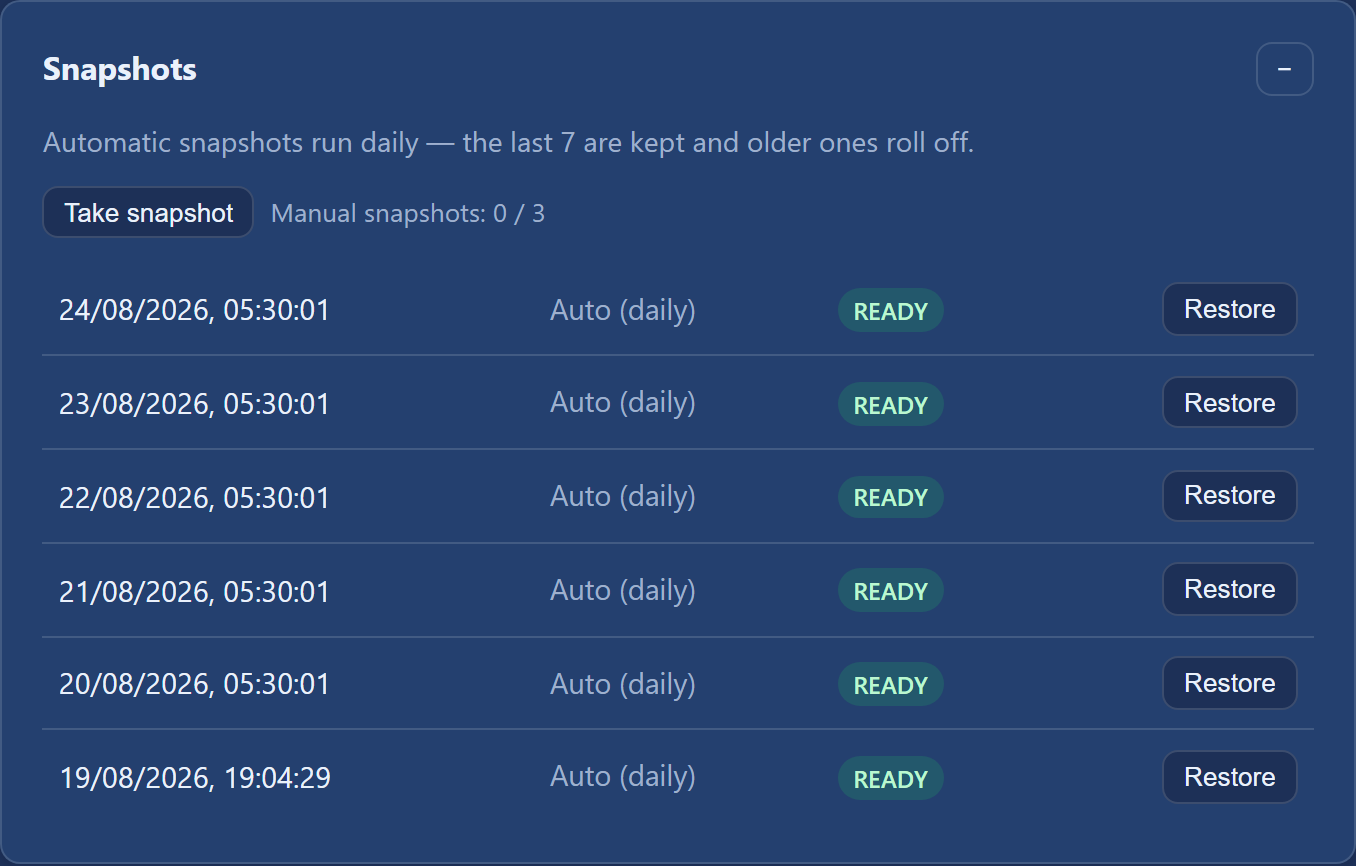
⚠️ Restoring overwrites the current state of every disk on the server and takes a few minutes, during which the server is unavailable. Deleting a manual snapshot cannot be undone.
💡 Take a manual snapshot before a reinstall, a resize or any larger change to the system — going back is then one click away.
¶ Reverse DNS (PTR)
If the server has its own, dedicated public IP address, you can set a PTR record for it — the address's "reverse name".
- On the server card, open the "Reverse DNS (PTR)" section.
- Type the name (
vm.yourdomain.com, for instance) and click "Set PTR". You remove the entry with "Clear PTR".
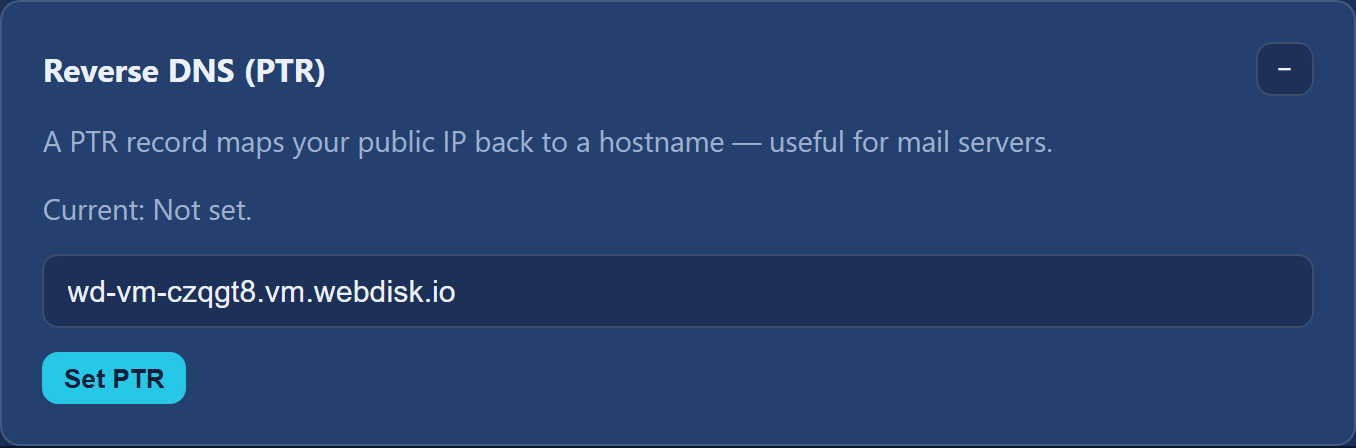
⚠️ A server without a dedicated address cannot have a PTR entry — the record can only point at an address that is yours alone. Running a mail server? This is not an optional extra: practically every provider rejects mail from an address whose PTR does not match the sender's name.
¶ Load at a glance
On the server card, the "Load" part shows a live reading: processor and memory usage (as bars) plus disk and network traffic. It is a snapshot of this moment — there is no history or past charts here.
¶ Network map
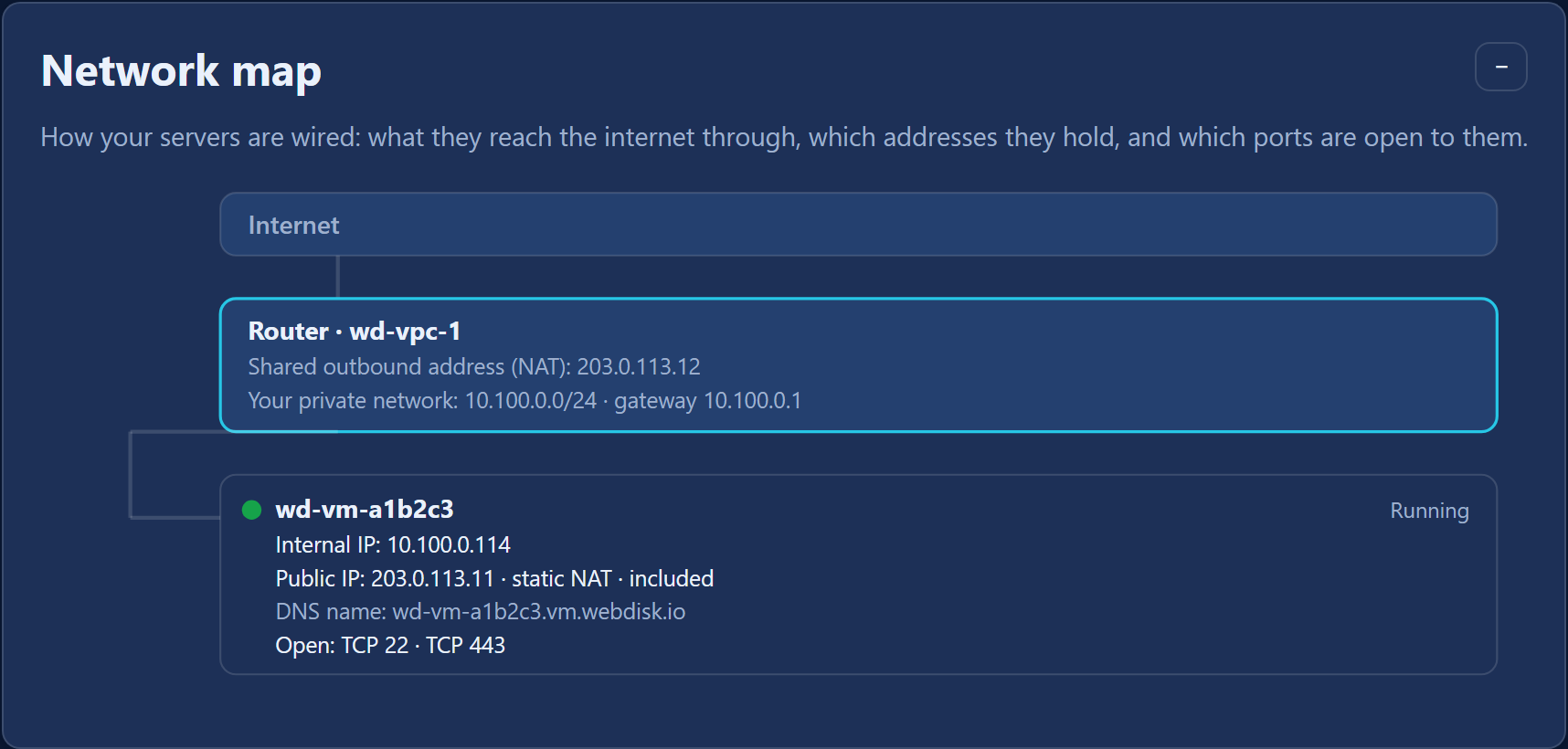
The "Network map" above the list of servers shows in a single diagram how your servers are wired together: the internet, the router, the shared outbound address (NAT), your private network, and each server with its internal address, public address and list of open ports. Servers without their own address show which shared address their ports are forwarded from.
¶ Server subscription
The "Subscription" section on the server card shows when the current period ends and what amount (net and gross) will be charged next time.
- "Cancel subscription" — the server runs to the end of the period you have paid for and is then removed.
- "Resume subscription" — appears after a cancellation; up to the end date you can change your mind and keep the server.
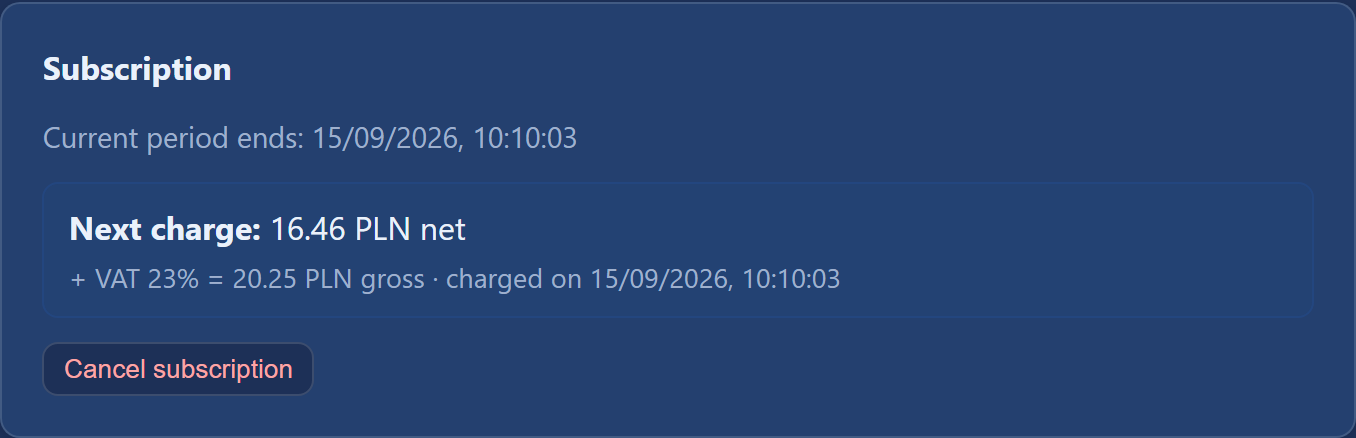
⚠️ The deadlines for an overdue payment are hard: after 7 days the server is stopped, after 14 days it is permanently deleted along with its data. Details in the FAQ.
¶ Invoices
The "Invoices" section at the foot of the panel holds the VAT invoices issued for your payments — with number, date, gross amount and a "Download PDF" button. A freshly issued document may briefly show the status "Being prepared" before it turns into "Issued"; a "KSeF: pending" or "✓ KSeF" marker may also appear next to it.

⚠️ VAT invoices are issued to companies, and only when your profile is complete — we need a tax id, street and number, postal code and city, plus the "I'd like an invoice (VAT)" box ticked. Without that the invoice list stays empty.
¶ Account settings ("Profile")
The "Profile" window opens from the top bar. It holds everything that concerns the account rather than an individual server:
- the password — the panel points out that it is shared across the WebDisk services and gives you a link to change it; you set the new password from a link we send to your e-mail address;
- "Billing profile" — "Name", "Street", "Postal code", "City", "Country", "VAT / NIP" and the "I'd like an invoice (VAT)" consent;
- "Two-factor authentication" — the "Enable 2FA" button, a QR code to scan with an authenticator app (Google Authenticator, 1Password, Bitwarden and the like) and confirmation with a code. Once it is on, every sign-in asks for the "Authenticator code";
- "Download my data (JSON)" — a copy of the personal data we hold about you;
- "Close my account" — schedules the permanent deletion of the account.
💡 Turn 2FA on if you keep anything of value on the server — a password on its own is far easier to snoop than a password plus a code from your phone.
¶ Report a problem
At the foot of the panel is the "Report a problem" section: you choose which server the matter concerns, fill in the "Subject" and "Details", optionally attach a screenshot (JPG or PNG, up to 5 MB) and click "Open ticket". We open a ticket and e-mail you the number. This section works even when the account is suspended.
¶ What next?
- Something missing here, or still unsure? → FAQ
- Want to spin up another server? → Order and launch a VPS