¶ WebDisk Files — frequently asked questions (FAQ)
¶ Account and signing in
I have forgotten my password.
On the sign-in screen click "Forgot your password?" and enter your email — we will send a link for setting a new one. The link is valid for 72 hours.
How do I change my password when I do remember it?
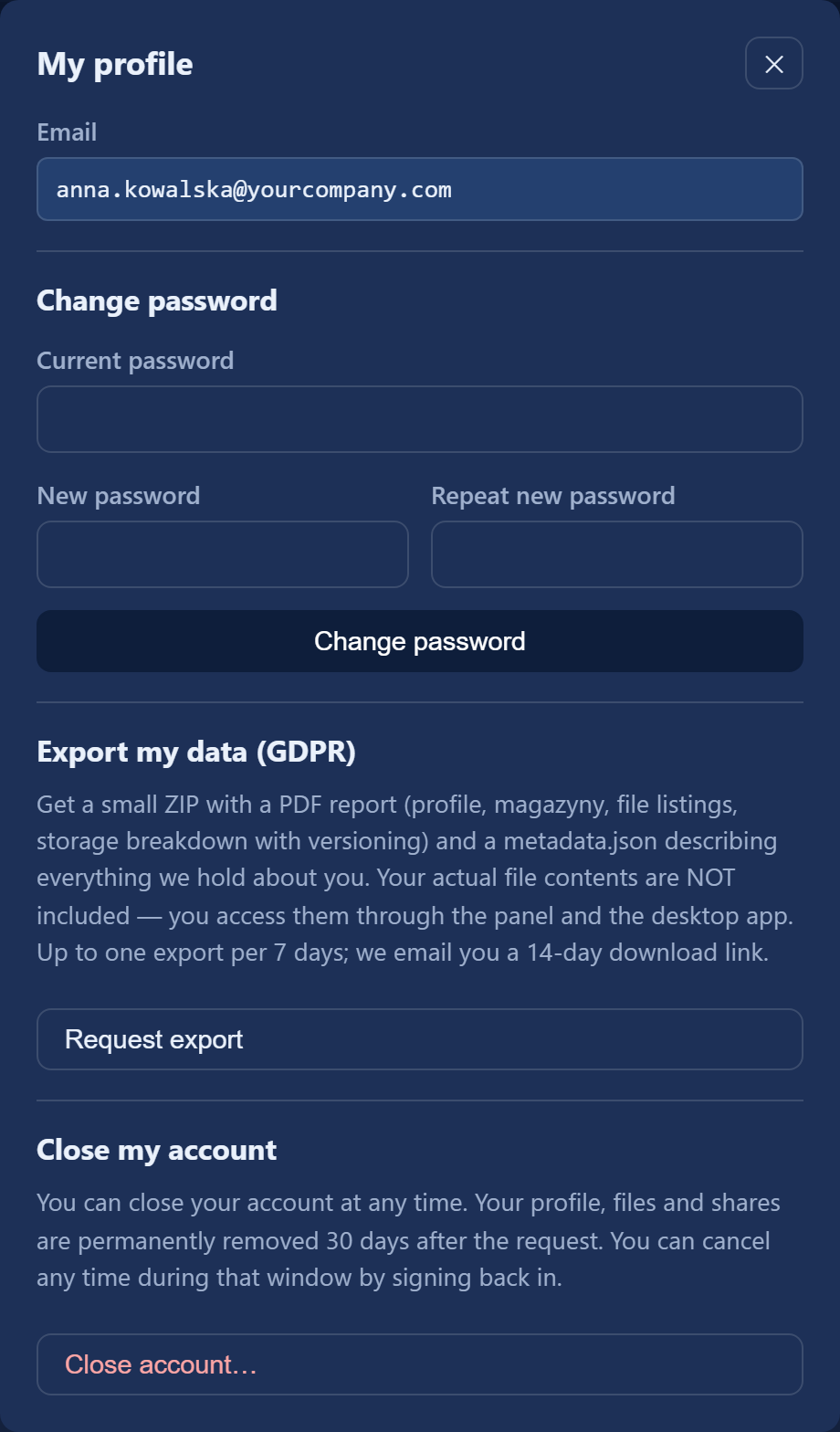
In the panel click "Profile" in the top bar — the "My profile" window has a change-password section.
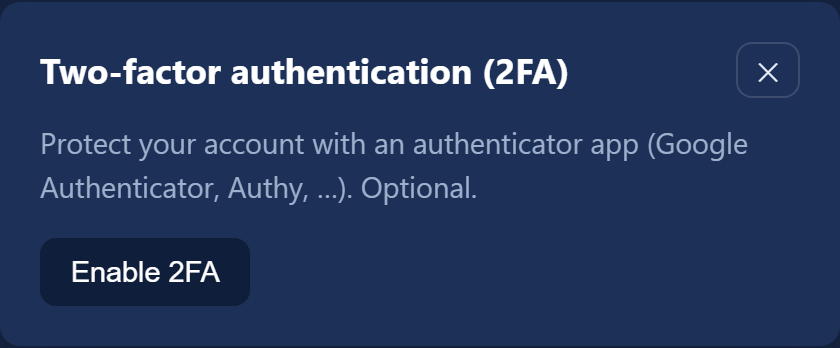
What is two-factor authentication (2FA) and where do I switch it on?
It is an extra layer of protection: after your password you enter a one-time 6-digit code from an app on your phone (Google Authenticator, for example). Click the "Enable 2FA" button in the application's top bar, scan the QR code with your authenticator app and confirm with the 6-digit code using the "Verify & enable" button. We recommend it — it protects your account even if somebody learns your password.
After signing in I see a window with terms and I cannot close it.
That is the "Please review and accept" screen — it appears when we have updated the documents. Open them from the list and click "Accept all", and the panel will unlock.
Which languages does the panel work in?
Four: Polish, English, Ukrainian and German. You switch language in the top bar, and your choice also drives the language of the emails we send you.
I signed in and instead of my files I see the "Organization" panel.
That is where everybody who bought the service lands. Click "Switch to user mode" to see your own files. Details: The Organization panel.
¶ Files and storage space
I cannot upload anything — the panel says no magazyn has been assigned to me.
A freshly created account does not have a space of its own yet. The magazyn (bucket) is assigned by your organisation administrator in the "Users & magazyny" card — until then uploading is impossible. Ask them to do it; the instructions are in The Organization panel.
How much space do I have?
The "Storage used" bar in the panel shows your consumption. Your personal limit ("Quota") is set by the organisation administrator within the purchased plan (1 to 100 TB). If the administrator has not set you a quota, you will not see the bar — you are then drawing on the organisation's shared space.
How large a file can I upload?
Individual files can be very large — they are uploaded in chunks. If you do hit the ceiling, you will see a message with the current maximum size.
I uploaded a file and I cannot see it in the list.
Files are sorted alphabetically and split across pages, so a new file often lands on a later page rather than at the end of the list. Type its name into the search box.
Is there a recycle bin?
No. Deleting a file is immediate and there is nowhere you can recover it from yourself. The only safety net is versioning switched on beforehand — see the next question.
I have overwritten a file with a new version.
If you previously switched "Version files" on, click "Versions" next to the file, pick an older version and click "Restore". We keep up to 3 versions of each file. Versions only start being kept from the moment the option is switched on.
I deleted a file by mistake.
Once a file has been deleted it is gone immediately — there is no recycle bin and versions will not help here. The exception is an Anti-Ransomware magazyn, where files are locked against deletion; in that case write to us through "Report a problem".
Can I rename a file or move it to another folder?
No — once a file has been uploaded it can be neither renamed nor moved. A file lands wherever you are standing at the moment of upload, so go into the right folder first and upload afterwards.
How do I download a whole folder at once?
Click "Download ZIP" next to the folder. Beside it you also have "Details" — the folder's file count and size. Both options work on the primary magazyn.
¶ Magazyny and security
What are those tabs above the file list?
They are magazyny — separate spaces for files. You have a primary magazyn, and the organisation administrator can assign you more. On an additional magazyn you can browse, upload, download, use "Versions" and delete; sharing and folder operations work only on the primary one.
Are my files safe?
The connection is always encrypted (HTTPS) and the files sit on our own infrastructure in the European Union. Every organisation has an isolated space. Encrypting the files themselves on the server is a separate option you switch on deliberately — see the "Encryption" section.
What does it mean for a magazyn to be "public"?
That any file in that magazyn can be downloaded by anybody who knows its address — with no sign-in, no password-protected link and no download limit. Magazyny are private by default, and the switch belongs to the organisation administrator alone ("Make public" / "Make private"). Do not keep anything in a public magazyn that you would not want to see on the internet.
What is "Anti-Ransomware"?
It is an option on an additional magazyn: for a chosen period (90 days minimum, 7 years maximum) files cannot be changed or deleted — not by you, and not by us. Ideal for archives and copies that must not be overwritten. The decision is one-way: Anti-Ransomware cannot be switched off later, and every edit of a file creates a new locked version, so storage use grows faster than in a regular magazyn.
What is "auto-rotation" (♻)?
It is the opposite of an archive: a magazyn with auto-rotation permanently deletes every file a set number of days after it was uploaded. It suits temporary data. Switching auto-rotation off stops future deletions, but files that have already been deleted cannot be recovered.
¶ Encryption
Are files encrypted on the server?
Not by default. The transfer always runs over HTTPS, but encryption at rest has to be switched on deliberately — and you have two options:
- On-demand encryption (SSE-C) — the organisation administrator switches it on in the Organization panel and receives a recovery key. After that, in the file panel, you turn on the "Encrypt files" button. This option can be switched on and off; a magazyn can hold encrypted and unencrypted files side by side.
- Permanent encryption (SSE-S3) — chosen only at the moment an additional magazyn is created. It encrypts every uploaded file server-side, you have no key to keep, but the decision cannot be undone.
⚠️ We show the SSE-C recovery key only once, when encryption is switched on. Losing it means permanently losing access to the encrypted files — save it somewhere safe immediately.
I switched "Encrypt files" off — what happens to the old files?
Nothing. Switching off applies only to new uploads; files encrypted earlier stay encrypted and still need the same recovery key to be read. Encryption cannot be "undone" for files that are already uploaded.
Can I encrypt a single folder?
No. Encryption covers the whole magazyn, not a chosen folder.
I can see a padlock next to my files and a message saying encryption is not configured.
On-demand encryption has to be started by your organisation administrator first. Until then the "Encrypt files" button is inactive.
¶ Sharing
How do I revoke a link I sent to somebody?
Scroll to the bottom of the panel, to the "Share links" card, find the link and click "Revoke". Details: Sharing files.
How do I stop sharing with somebody in the company?
You cannot do it yourself — the panel does not show a list of what you have shared with others. You can ask the recipient to remove the entry from their "Shared with me" card, or delete the file itself. If it is urgent, write through "Report a problem".
¶ Access from your own tools (S3)
Can I plug WebDisk Files into rclone, aws-cli or a NAS backup?
Yes. The Organization panel has an "S3 access" card with the endpoint address, the region, the access key and the secret key (revealed with the "Show" button), plus a note about path-style addressing. The card is available to the organisation administrator — they are the one who hands out the credentials.
⚠️ The secret key is full access to your organisation's buckets. Treat it like a password and do not send it by email. If SSE-C encryption is in use on a magazyn, an external tool must additionally supply the recovery key in order to read the encrypted files.
I have data with another S3 provider — can it be moved across?
Yes. The Organization panel has a "Bucket replication" card and a "New migration" button: you enter the source S3 address and credentials, and we copy the bucket into a new WebDisk magazyn. The copy runs in the background, you can watch its progress and stop it at any time.
¶ Plan, payments and cancelling
How do I increase or decrease the storage I have bought?
In the Organization panel, in the "Subscription & storage" card, set the new size in the "Change plan (TB)" field and click "Apply". An increase takes effect immediately with a prorated charge; a decrease takes effect at the end of the current billing period.
Where do I find my invoice?
In the Organization panel, in the "Invoices" card — with the number, issue date, period and amount, downloadable as a PDF. We only issue invoices if you have filled in your company details (including the VAT number) in "Company profile" and ticked "I need a VAT invoice". The invoices also show the status of their KSeF filing.
How do I cancel the service?
In the "Subscription & storage" card click "Cancel subscription". The account is suspended for 7 days — during that time you can change your mind with the "Resume subscription" button. After 7 days the data is removed for good; if you realise later, write to support@webdisk.io.
⚠️ Cancelling the subscription deletes all of the organisation's data. Download whatever you want to keep before the 7-day window closes.
¶ Your account: data and closure
How do I download everything you hold about me (GDPR)?
The "Profile" window has an "Export my data (GDPR)" section and a "Request export" button. You get a ZIP with a PDF report (profile, magazyny, file listings, storage used) and a metadata.json file. The contents of the files themselves are not included — you download those from the panel or the app. You can request one export every 7 days; we email the download link and it is valid for 14 days.
How do I close my account?
In the "Profile" window click "Close account…". Your profile, files and shares will be permanently removed 30 days after the request — throughout that time you can reverse the decision by signing in and clicking "Cancel deletion".
And if I want to close the whole company in WebDisk?
The organisation administrator has a "Close organisation…" button in the Organization panel — it removes every user, file and magazyn and cancels the subscription. The change takes effect after 30 days and can be reversed during that time.
¶ The desktop app
How does the desktop app differ from the website?
The app keeps a chosen folder on your computer in sync with the cloud (like Dropbox) — you work on the files locally and they travel to the cloud by themselves. The website is for uploading, organising and sharing in the browser.
Where do I download the app?
Click "Download" in the top bar — this opens the page with the Windows installer (.exe) and the .deb (Debian/Ubuntu) and .rpm (Rocky/RHEL/Fedora) packages. The macOS build is marked "Coming soon".
¶ Something is not working
The page will not load / an error while uploading.
Refresh the page and try again. If the problem comes back, use the "Report a problem" button in the application — describe what you were doing and attach a screenshot if it helps (JPG or PNG, up to 5 MB).
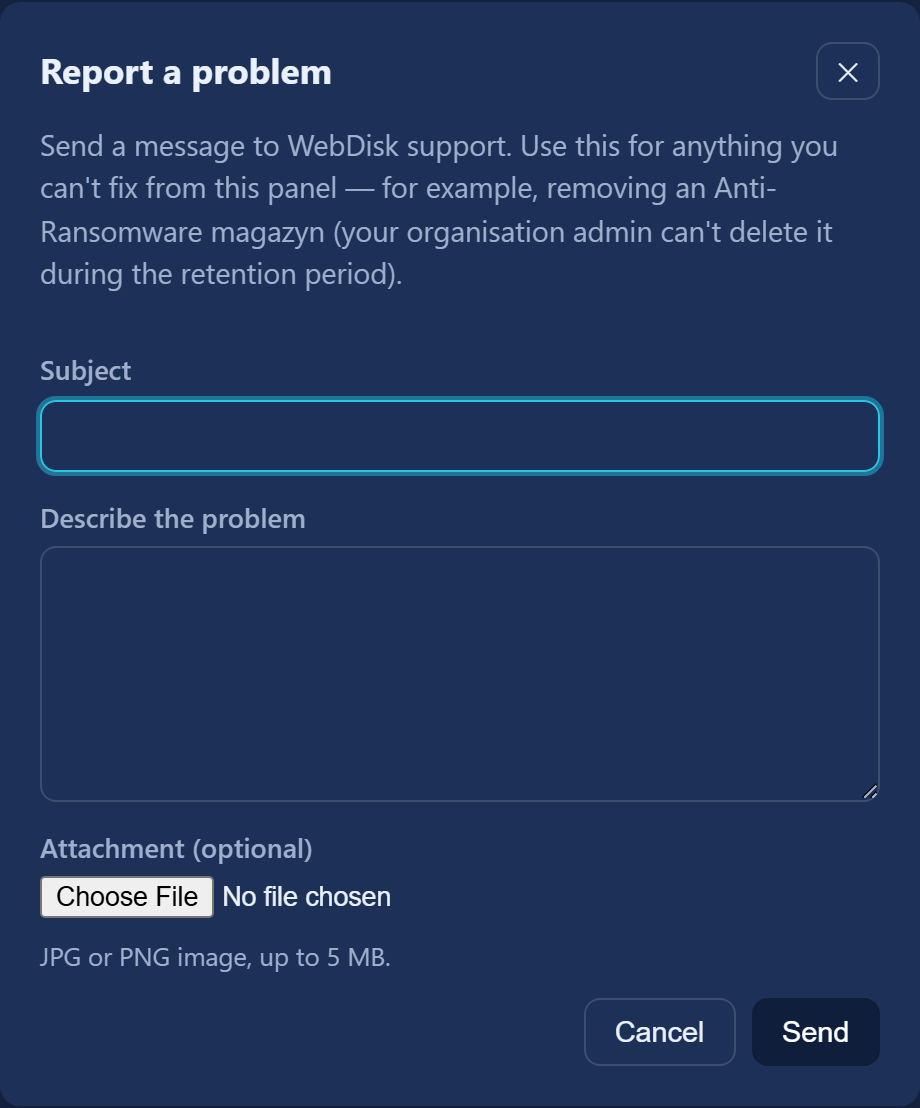
💡 Did not find your answer? Write to us through "Report a problem". Have a look as well at Getting started, Sharing files and The Organization panel.