¶ The Organization panel in WebDisk Files
If you are the person who bought WebDisk Files, you are the organisation administrator — and after signing in you land here rather than on the file list. In this panel you create accounts for colleagues, assign them magazyny (storage spaces) and quotas, switch encryption on, and keep an eye on the subscription and the invoices.
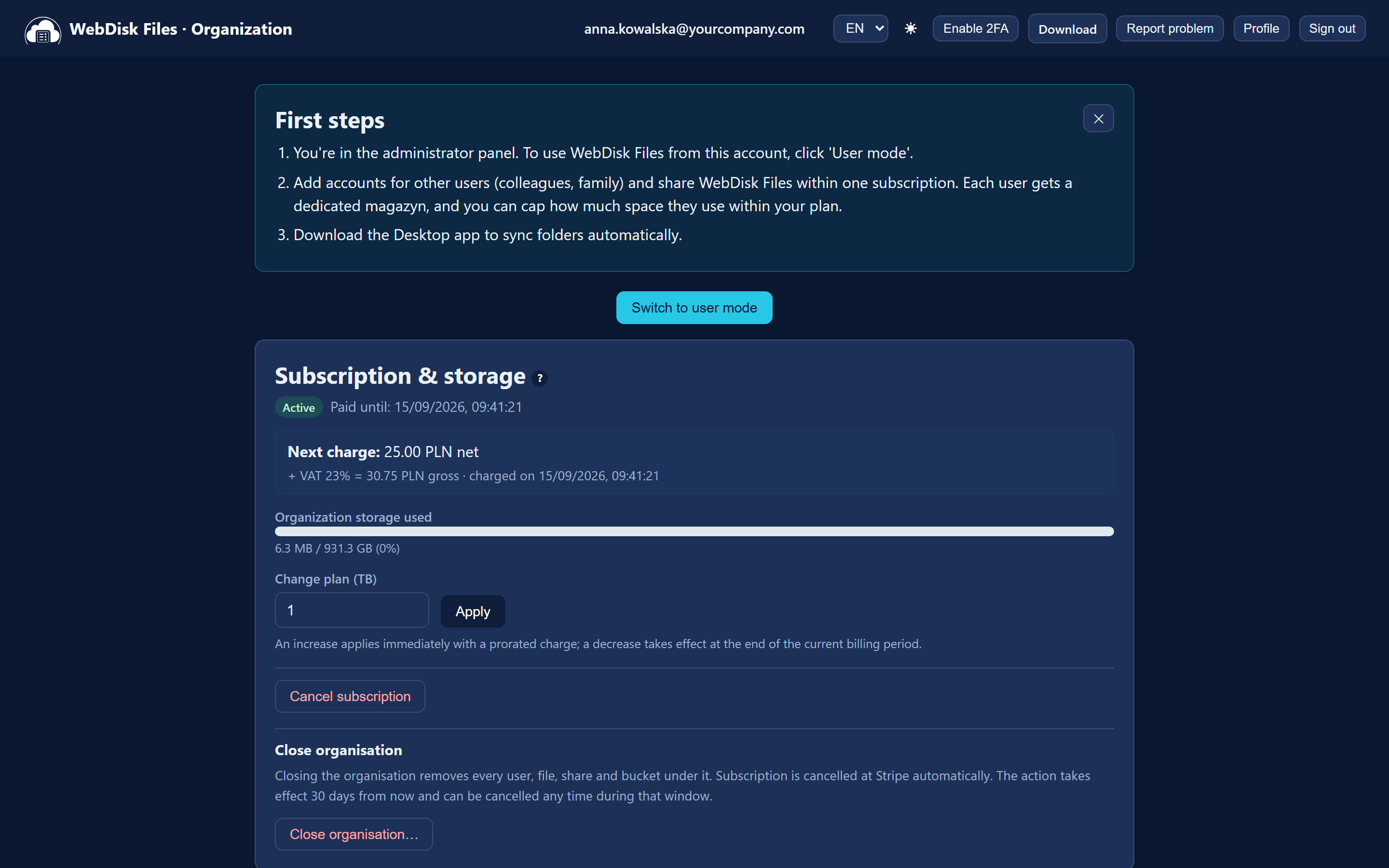
💡 Want to see your own files? Click "Switch to user mode". You come back here with the "Switch to administrator mode" button in the top bar. What working with files looks like is covered in Getting started.
¶ Creating user accounts
In the "Create user" card you enter an email address — that will be the person's login. You can leave the password empty; we will then send them a link to set a password themselves.

Every user gets their own, separate magazyn — everybody draws on one subscription.
⚠️ Creating the account is not enough on its own: until you assign that person a magazyn (next section), they will see a message in the panel saying no magazyn has been assigned to them, and will not be able to upload a single file. This is the most common support ticket after a new account is created.
¶ A magazyn and a quota for each person
The "Users & magazyny" (users and storages) card is the list of accounts in the organisation. For each one you can:
- assign a magazyn (bucket) — without it the user cannot upload any files,
- set the "Quota", that is the space limit for that person (or leave it as "No limit"),
- click "Reset password" when somebody has lost access,
- "Enable" / "Disable" an account when somebody is leaving the team for a while or for good,
- delete the account.
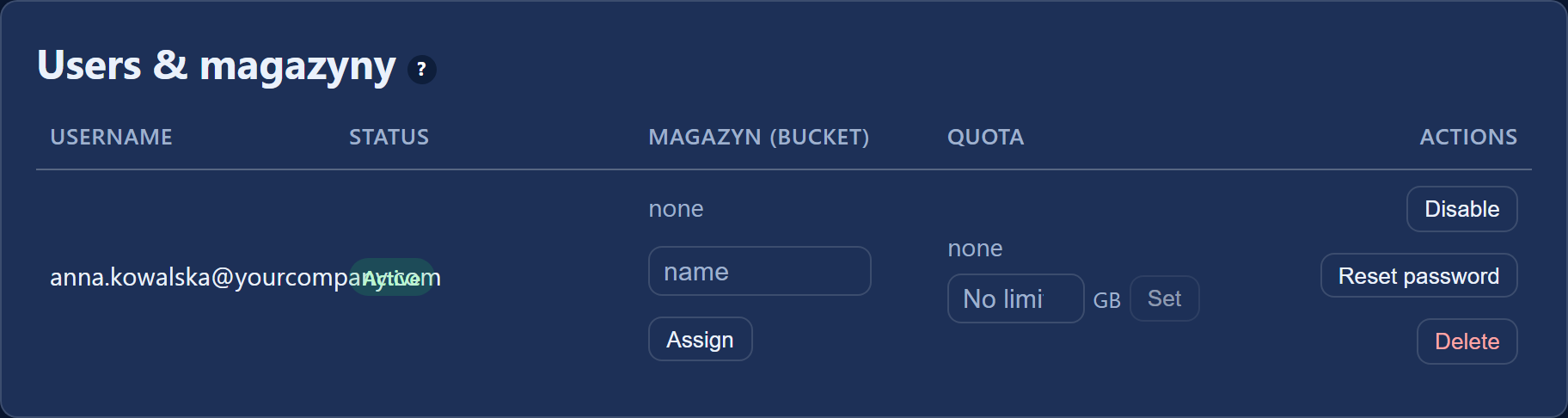
⚠️ Deleting a user also deletes their files and their magazyn bucket. If you only want to cut access off, use "Disable" instead of deleting.
A magazyn name is 2–40 characters: lowercase letters, digits and hyphens, starting with a letter or a digit (for example acme-archive).
¶ Magazyny — regular, archival and temporary
In the "My magazyny" card you add further spaces with the "Add magazyn" button. At creation time you decide on properties that often cannot be changed afterwards:
- "Create as public" — a public or a private magazyn; this can be switched later ("Make public" / "Make private").
- "Anti-Ransomware" 🛡 — files are locked for a chosen period (90 days minimum, 7 years maximum). During that time nobody will delete or change them. Available on additional magazyny only, and it requires an empty bucket. Such a magazyn is always private and has versioning permanently switched on.
- "Permanent encryption (SSE-S3)" 🔒 — every uploaded file is encrypted by the storage server, with no key on your side. Selectable only at the moment the magazyn is created.
- Auto-rotation ♻ — the magazyn permanently deletes files by itself a set number of days after upload. You can switch it on and off later; it applies to additional magazyny only.
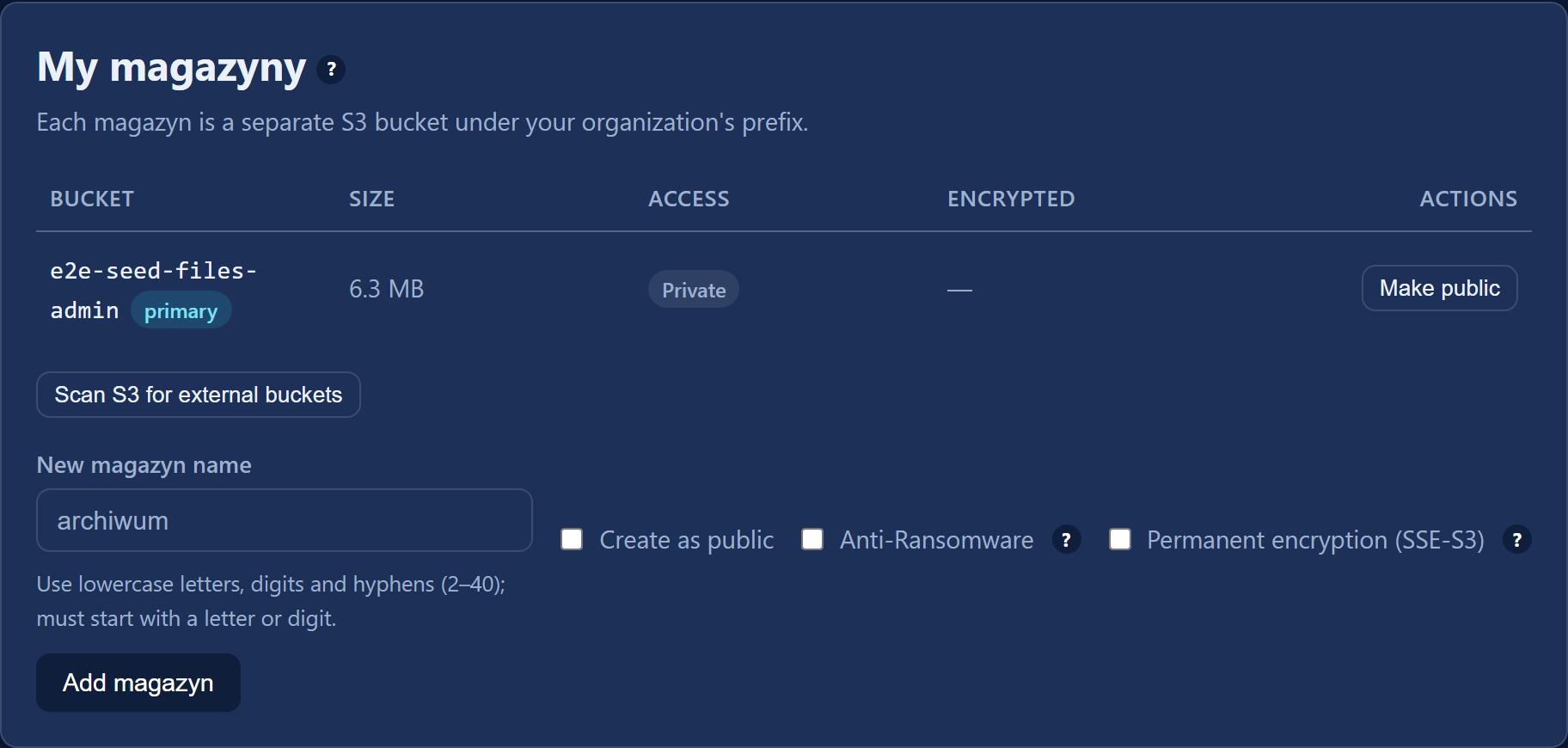
⚠️ "Public" really does mean public. In such a magazyn any file can be downloaded by anybody on the internet who knows its address — with no account, no password-protected link, no download limit and no trace in the "Share links" card. Magazyny are private by default; only switch this when you genuinely are hosting material for publication. An encrypted magazyn cannot be made public — encryption has to be switched off first.
⚠️ Anti-Ransomware and permanent encryption are one-way decisions — they cannot be switched off later. A magazyn with Anti-Ransomware cannot be deleted or renamed while the lock period is running; that then needs our intervention through "Report a problem". Auto-rotation, on the other hand, deletes data — files removed by rotation cannot be recovered, even after it has been switched off. A regular magazyn you can delete yourself, but only once the bucket is empty.
¶ Encryption and the recovery key
The "Encryption" card starts on-demand encryption (SSE-C) for the whole organisation. After you click "Enable encryption" you receive a recovery key and a "Download key" button.
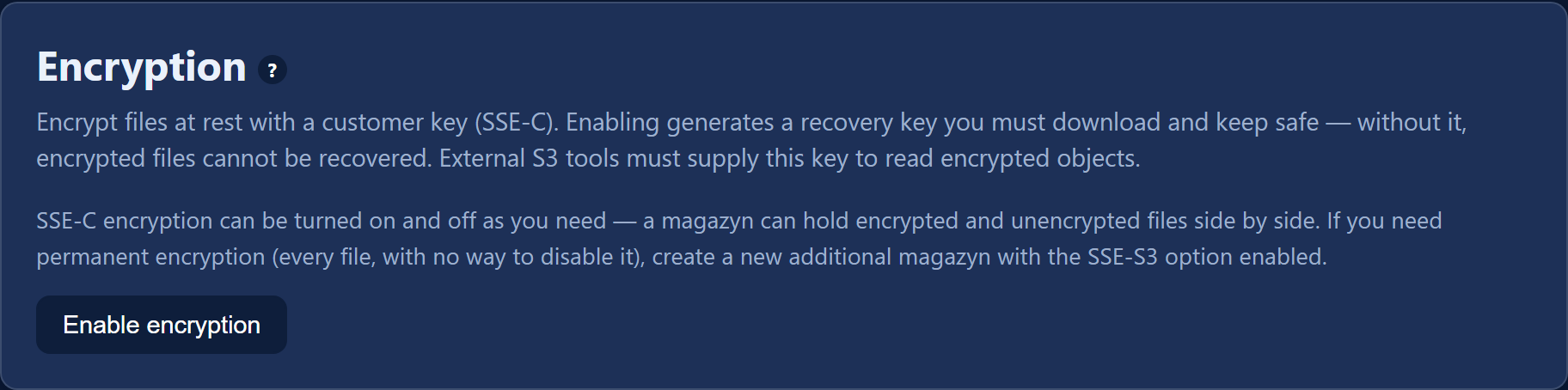
⚠️ We show the key only once. Save it somewhere safe immediately — without it nobody can recover the encrypted files, ourselves included.
Only after this step do users see a working "Encrypt files" button in their own panel. SSE-C encryption can be switched on and off, and a magazyn can hold encrypted and unencrypted files side by side. Switching it off only affects the future: files encrypted earlier stay encrypted and still require the same key. If you need encryption that covers everything with no way of switching it off, create a new magazyn with the SSE-S3 option.
¶ S3 access for your own tools
The "S3 access" card shows what you need in order to reach the organisation's buckets from outside the panel — from aws-cli, rclone or an S3 SDK, and from backup tools and a NAS as well. Here you will find the endpoint address, the region, the "Access key" and the "Secret key" (revealed with the "Show" button), plus a note about path-style addressing.
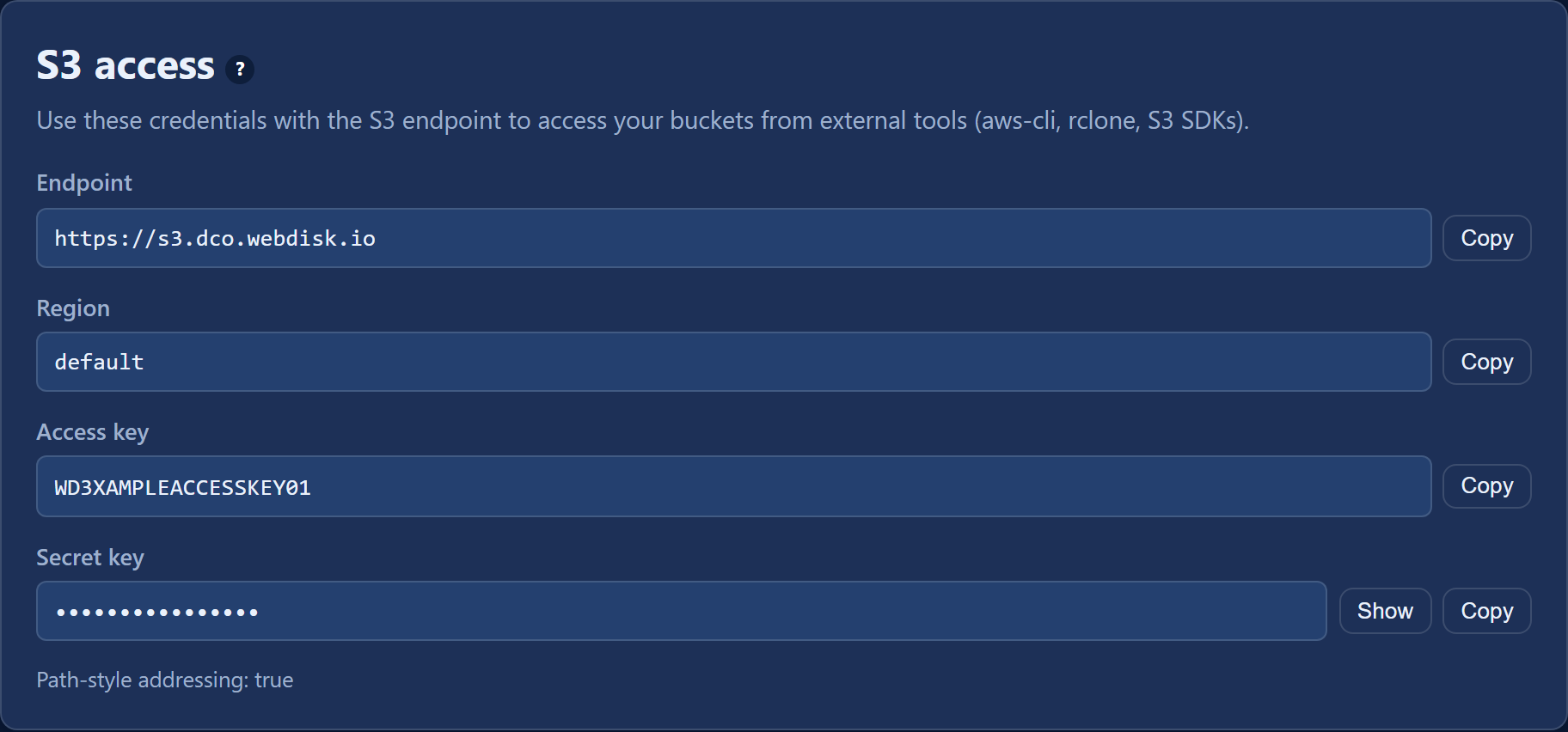
⚠️ The secret key gives full access to the organisation's data. Treat it like a password, do not send it by email and do not paste it into shared documents. With an SSE-C encrypted magazyn the tool must additionally supply the recovery key.
¶ Moving data over from another provider
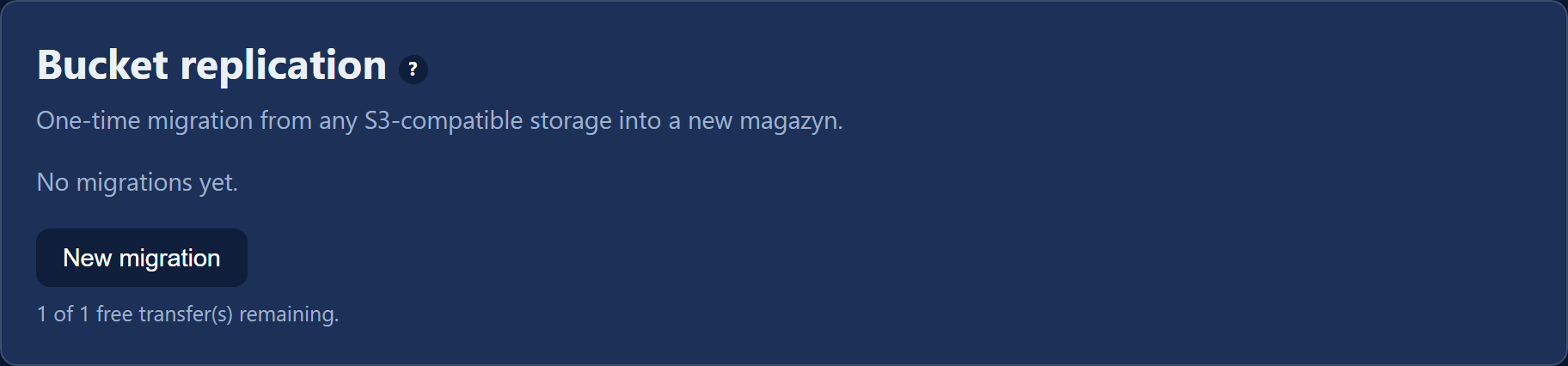
The "Bucket replication" card is for a one-off import of an external S3 bucket into a new WebDisk magazyn. Click "New migration", enter the source S3 address together with its credentials, pick the bucket and start the copy. It runs in the background — you can see the progress and stop it at any time.
¶ Subscription, changing the plan and cancelling
The "Subscription & storage" card shows your plan, the paid-until date, the amount of the next charge and the organisation's storage use.
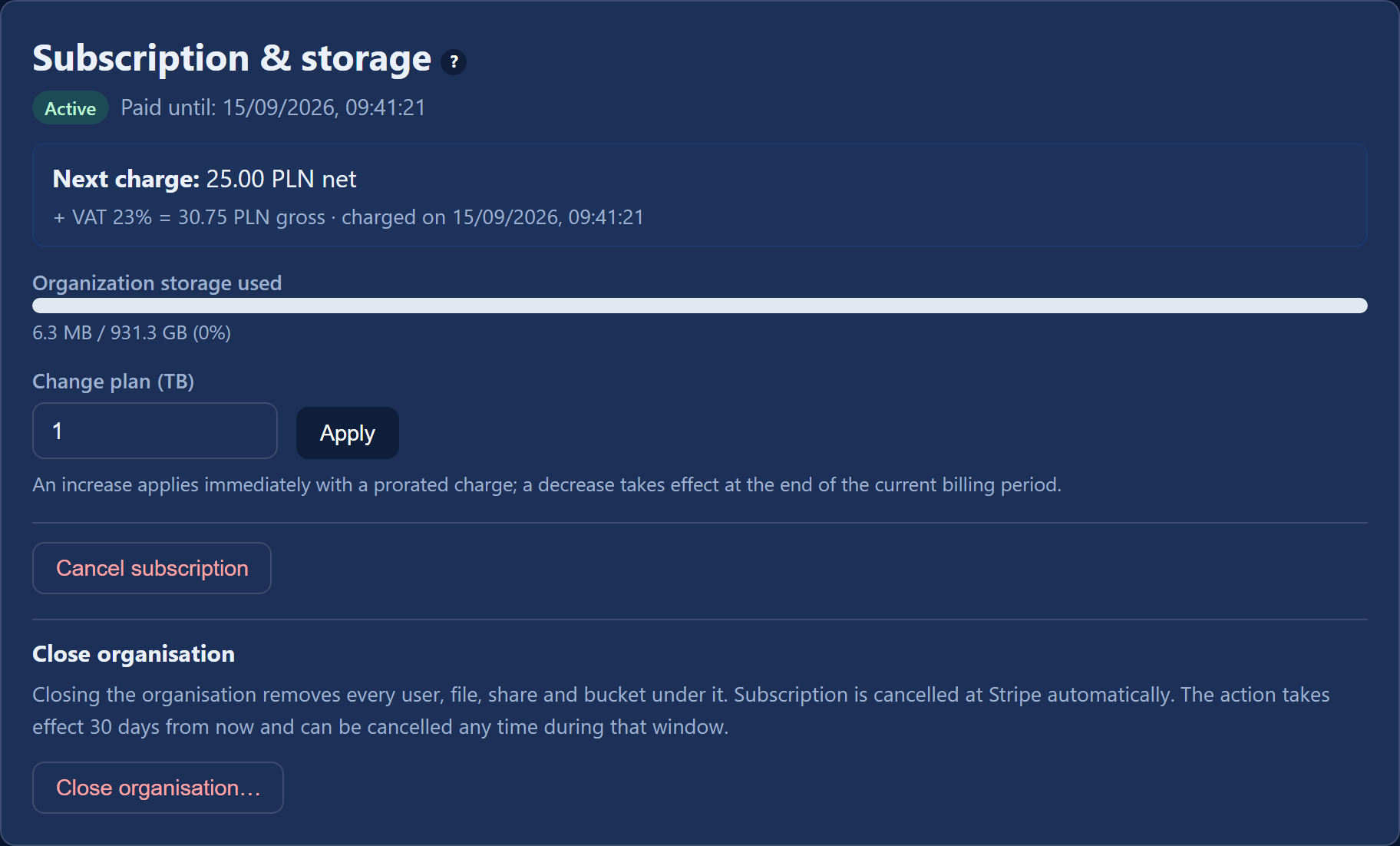
- Changing the size — set a new value in the "Change plan (TB)" field (1 to 100 TB) and click "Apply". An increase takes effect immediately, with a prorated charge; a decrease takes effect at the end of the current billing period.
- Cancelling — the "Cancel subscription" button. The account is suspended for 7 days, after which it is permanently deleted along with all its data. Within those 7 days you can come back with the "Resume subscription" button; after that, write to support@webdisk.io.
- Closing the organisation — the "Close organisation…" button removes every user, their files, shares and magazyny, and cancels the subscription. The change takes effect after 30 days and can be reversed during that period.
⚠️ Before you cancel the subscription or close the organisation, download the data you want to keep — once the deadline passes it cannot be reconstructed.
¶ Billing details and VAT invoices
In "Company profile" you fill in the name, address, country and "VAT (Tax ID)", and tick "I need a VAT invoice". Without this we will not issue invoices.
The documents we have issued are in the "Invoices" card — with the number, issue date, period and amount, downloadable as a PDF. Each invoice also shows the status of its KSeF filing ("KSeF: pending" or the filing date).
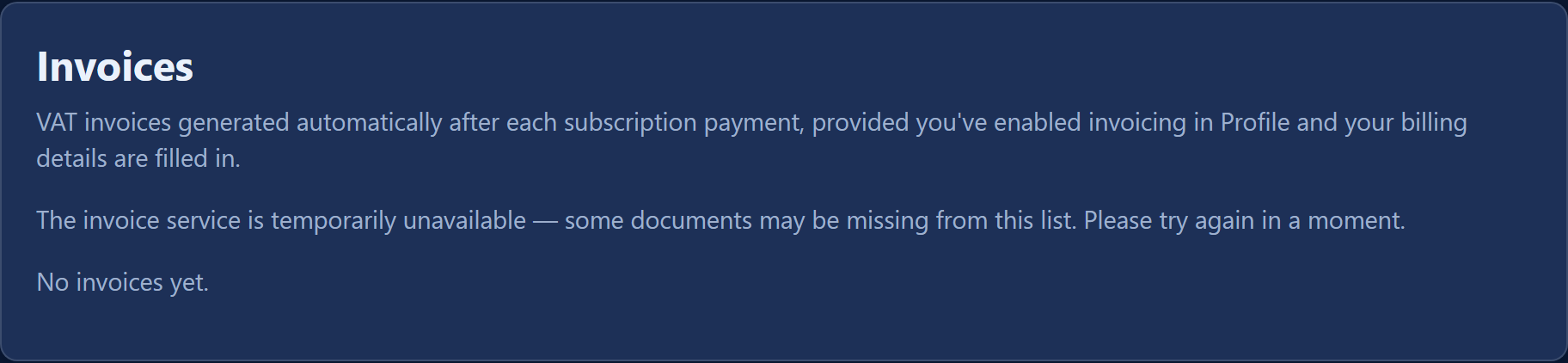
💡 A freshly paid invoice may be marked "Invoice being prepared" for a short while — it will appear in the list by itself. If it has still not appeared after a longer wait, write through "Report a problem".
¶ What next?
- What day-to-day work with files looks like → Getting started
- How to share files outside and inside the company → Sharing files
- Short answers to users' questions → FAQ