¶ How to send a file in WebDisk Send
This guide takes you from signing in to sending your first link. It takes about 2 minutes.
¶ 1. Sign in
Go to https://send.webdisk.io, enter your e-mail and password, then click "Sign in".
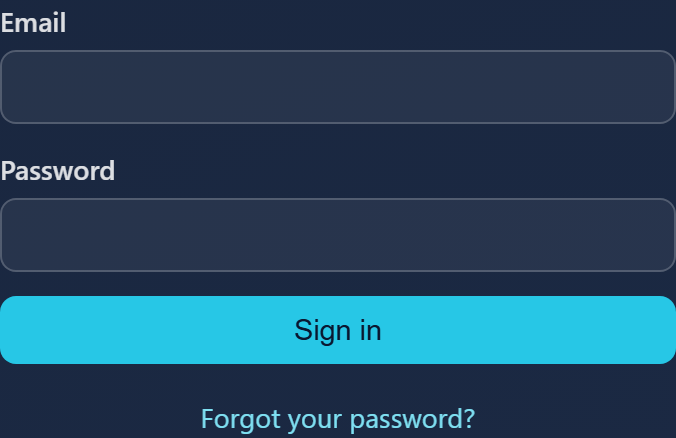
- First time here? Click "Don't have an account? Create a free one". In the form you give your e-mail and a password, repeat it in the "Repeat password" field and tick your acceptance of the WebDisk Send Terms. You create the account with the "Create account" button.
- Confirm your e-mail address. After you register we send a message with an activation link — the link is valid for 24 hours. Until the address is confirmed, uploading and sharing are blocked (you will see a red bar at the top of the panel telling you so).
- Forgotten your password? Click "Forgot your password?" — we will send a link for setting a new one. That link is valid for 72 hours.
- Do you have two-factor sign-in (2FA) switched on? After the password, enter the 6-digit code from the app on your phone.
- Already using another WebDisk service? You can sign in with the same account — you will see a "Use this account" button. If you have a WebDisk account but not the Send service yet, the panel will offer "Create a Send account".
💡 An account is only needed for sending. The person receiving your file registers for nothing.
⚠️ Activation e-mail never arrived, or the link has expired? There is no separate "resend" button — fill in the registration form again with the same address and we will send a new link. Check your spam folder too.
💡 The top bar is where you switch the language (Polish, English, Ukrainian, German) and the light/dark theme. Your session expires after an hour of inactivity — just sign in again.
¶ 2. Upload a file
After signing in, the "Send a file" card sits at the top. There are two ways to add a file:
- Drag and drop — grab the file on your computer and drop it into the "Drag & drop a file here" area.
- With the button — click "Choose a file" and point to the file on your disk.
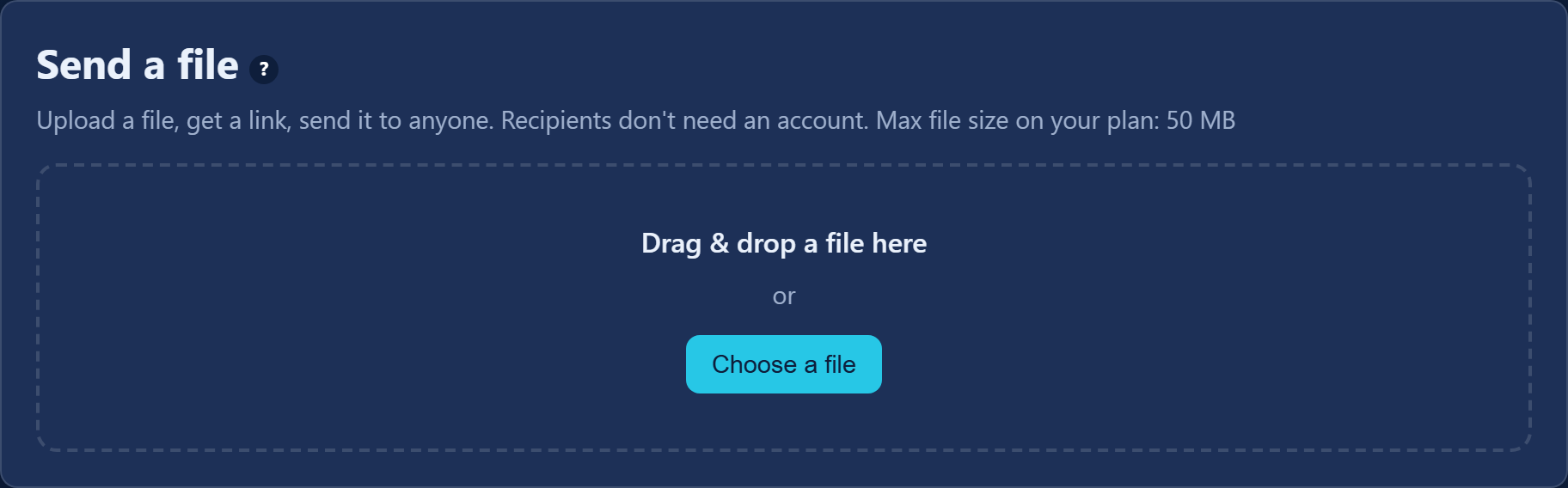
Under the card heading we state the maximum file size on your plan. If the file is larger, you will see a message — that is the moment moving to the paid plan helps.
While the file is uploading you see the progress ("Uploading name… 42%") and a "Cancel" button. Once it reaches 100% there is one more message about saving the file — that is normal, finalising takes a moment.
Large files upload in chunks, so a short break in the connection does not send everything back to zero.
💡 To resume an interrupted upload after a dropped connection or a page reload, pick exactly the same file (same name, size and modification date). The remembered progress is valid for 7 days; a file that changed in the meantime uploads from the beginning.
¶ 3. Configure the transfer
When the file has uploaded, you will see the message "name uploaded. Configure your transfer:" and a form with four fields:
- Recipient e-mails (optional, comma-separated) — type the addresses here and we will send the link on your behalf.
- Password (optional) — the recipient enters it before downloading. Empty field = no password.
- Expires after (hours, optional) — you give the number of hours from the moment the link is created after which it stops working. It is a number field, not a calendar. Empty field = the link never expires on its own.
- Max downloads (optional) — for example
5. Empty field = no limit.
⚠️ "Expires after" applies to the link, not to the file. The file itself will disappear anyway once your plan's storage period is over — the two dates are not the same thing, and you can see both next to the file. We explain them in Plans and limits.
Worth knowing about e-mail delivery:
- The recipient gets a standard WebDisk message with the file name and a download button. There is no field for a note of your own — if you want to add something, write to the recipient separately.
- Messages only go out once your own e-mail address is confirmed.
- Limits apply: at most 30 messages a day from one account and at most 3 messages a day to any one recipient mailbox. Once you go over, you will see a too-many-requests message — you can always copy the link and send it yourself.
¶ 4. Create the link and send it
Click "Create link & send". After a moment you will see the message "Your transfer is ready" and the finished address.
- Click "Copy" and paste the link anywhere you like (e-mail, messenger, chat).
- "Open" shows you the download page exactly as the recipient will see it.
- If you entered recipient addresses, we list underneath the link who the message went to ("Sent to: …"), and if delivery failed — who it could not be delivered to.
- "Send another file" clears the card so you can start again.
¶ What you can do with a transfer you have sent
Every file you have uploaded, together with its links, is in the "Your transfers" card in the panel — with the columns Name, Size, Uploaded, Stored until, Link and Actions. The list is paginated (the "Previous" and "Next" buttons at the bottom).
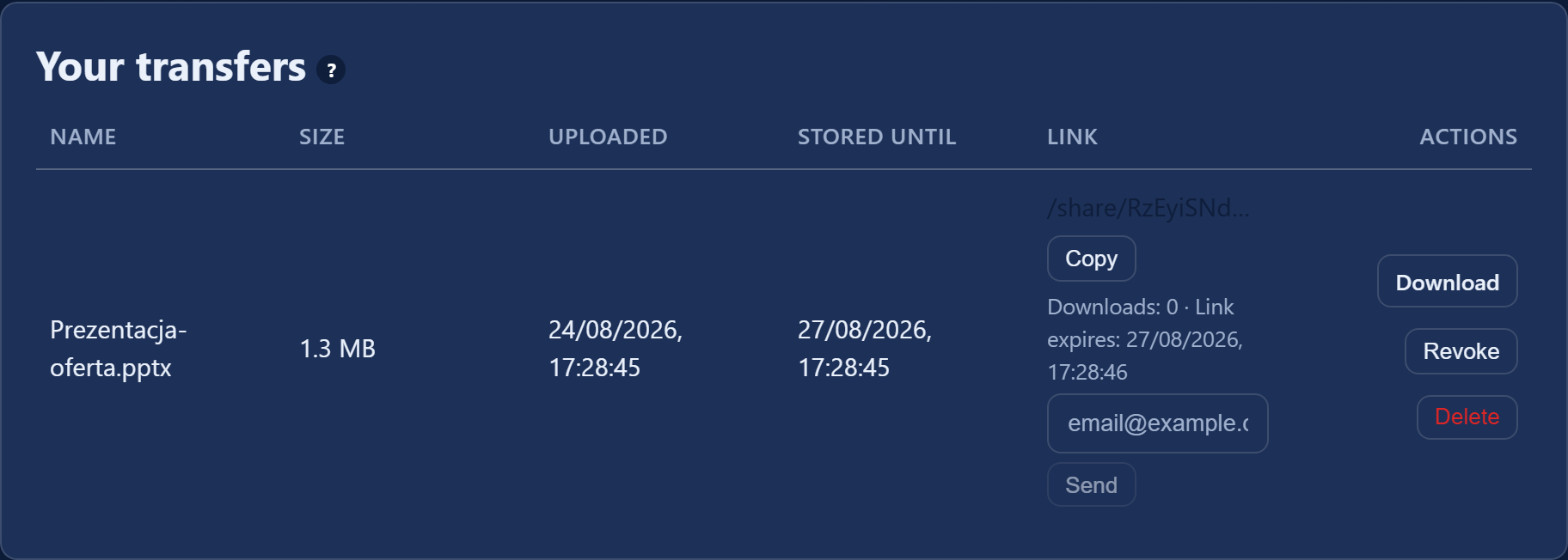
Every row gives you:
- A download counter next to the link (for example "Downloads: 2 / 5"), a note about the password, and the "Link expires" date if you set one.
- An e-mail field and a "Send" button — for passing the same link on to one more person. The addresses we have already sent the link to are listed under the file name.
- "Download" — pull your own file back onto your disk.
- "Revoke" — invalidate the link. From that moment nobody can download anything through it; the file itself stays in the panel.
- "Delete" — delete the file immediately, together with its links. This cannot be undone.
- "Create link" — appears next to a file that has no link yet (for example one you uploaded earlier and never configured a transfer for). It opens the "Share file" dialog with the same fields: "Expires after (hours, optional)", "Password (optional)" and "Max downloads (optional)", which you confirm with the "Create share link" button. Once the link exists, the same dialog lets you e-mail it straight away to an address you enter under "Email the link to".
⚠️ Deleting a file and revoking a link both take effect immediately and cannot be undone. Before you delete a file, make sure the recipient has managed to download it.
¶ What does it look like for the recipient?
The recipient opens the link in a browser and sees a note that someone has shared a file with them, along with its name and size; if you set a password, they enter it before downloading. They need no WebDisk account and install nothing.
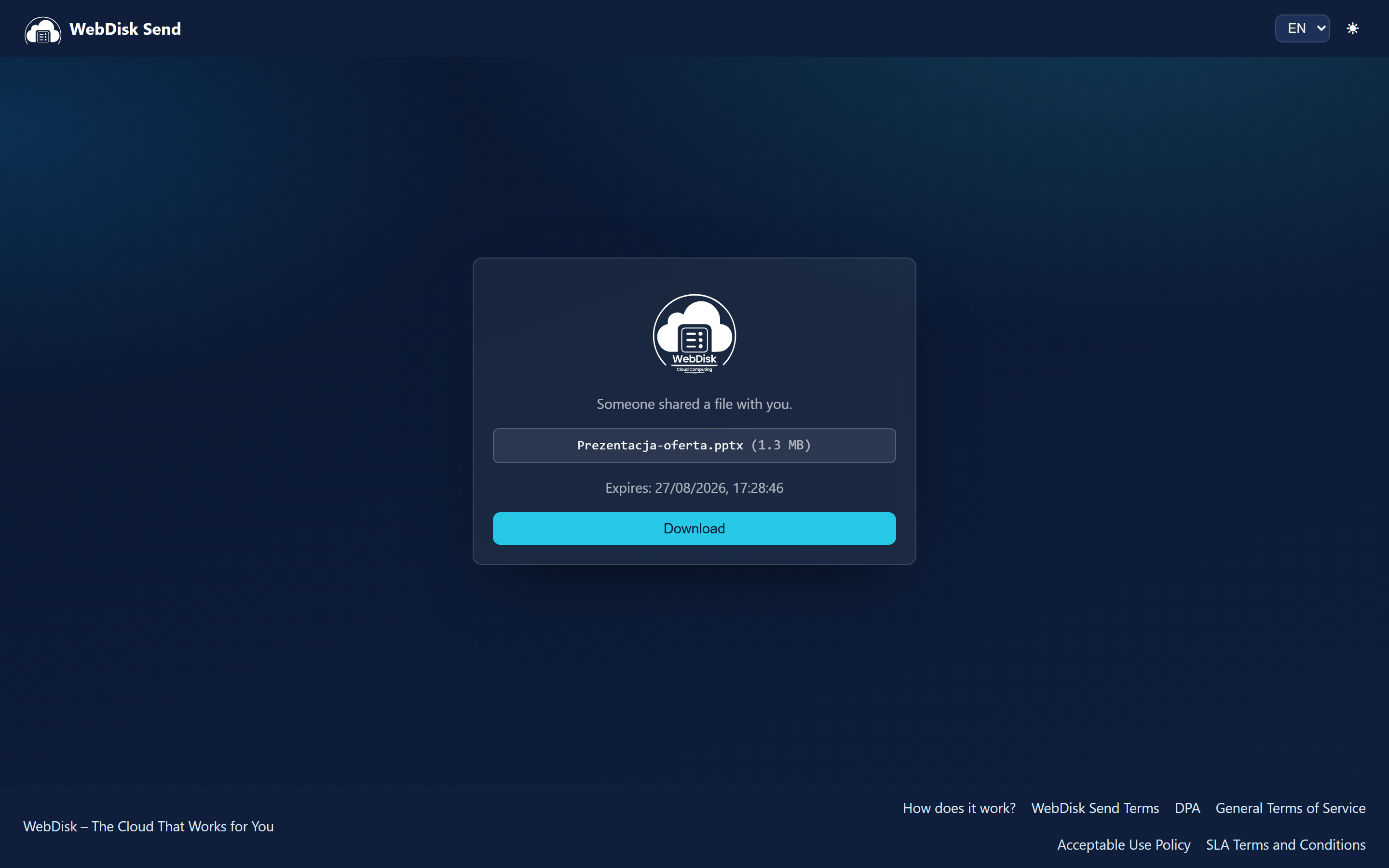
If the link has been revoked, has expired, has used up its download limit, or you have used up your monthly transfer allowance, the recipient sees a message explaining why the download is not working.
¶ What next?
- Want to know how long a file lives and how many downloads you get? → Plans and limits
- Got a question about accounts, invoices or security? → FAQ
- Need cloud storage with folders and a permanent home for your data, not just sending? Have a look at WebDisk Files.